User/Location - Tech Sync Settings
Use the 'User/Location - Tech Sync Settings' menu option to edit settings for the selected user/location. Note: Often, a Single-User database will be created from a Create New Database operation, and that database has Tech Sync settings seeded in the Starter Database Setup (Admin Only) dialog. In that case, these settings will already be standardized globally and blocked from the edit. Here are the settings - as displayed in the Single-User's Tech Sync module (note that only the settings related to single-user syncs are shown):
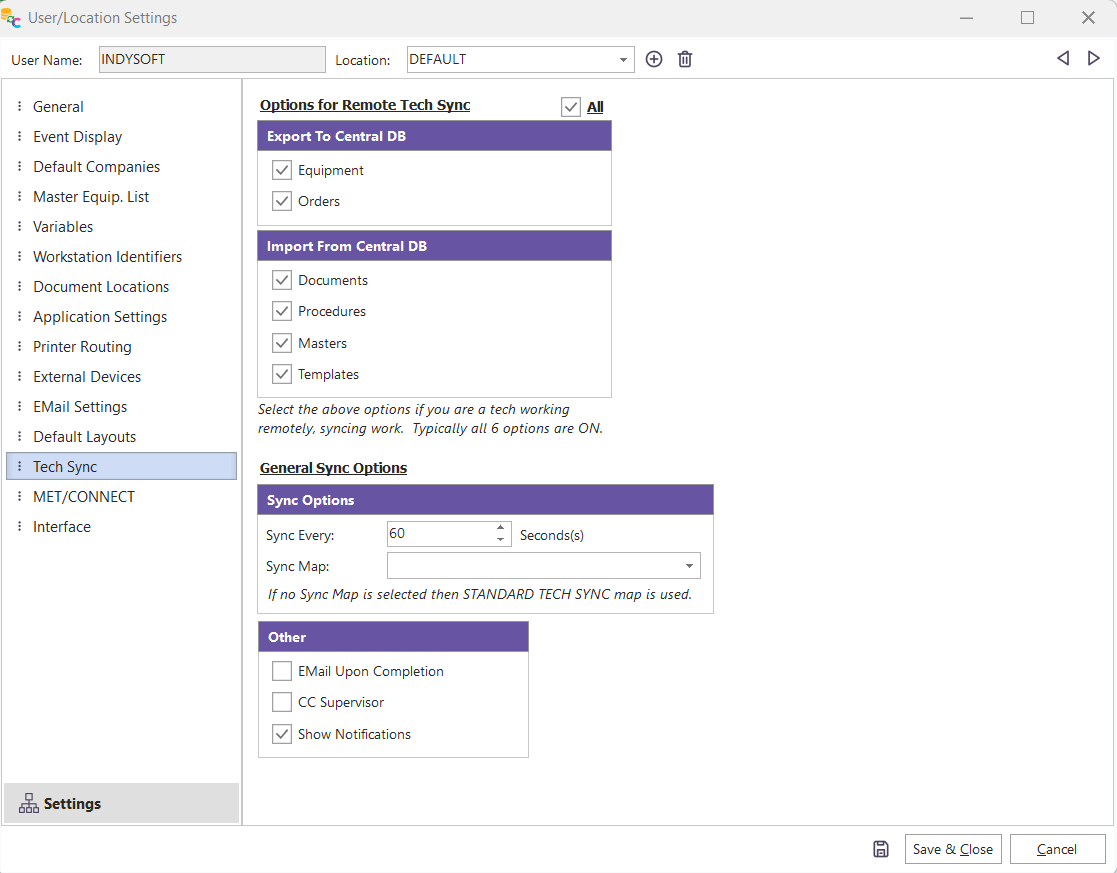
User/Location Settings - Tech Sync
Export To Central DB: Select items should be automatically exported and uploaded from the Single-User database when the IndySoft Tech Sync utility is running. Typically, the options selected would be as in the above screenshot: Equipment and Orders. So any Equipment or Order changes made in the Single-User database are automatically exported and uploaded to the IndySoft Secure Server.
Import From Central DB: Select the items that should be automatically downloaded from IndySoft Secure Server and imported into the Single-User database. These would correspond to files uploaded from the Multi-User IndySoft Tech Sync Service. Typically, the options selected would be as in the above screenshot: Documents, Procedures, Masters, and Templates. So as these items are modified in the Multi-User database, these files are automatically imported into the Single-User database as soon as they are downloaded during sync.
Sync Options: Select how often the syncs should occur in seconds. The default value is 60 seconds. Next, select the Sync Map that should be used for any exported equipment records. (If Equipment is not selected for export,, this selection is unnecessary). Sync Maps are set up in the IndySoft DataSync utility.
Other: Select a UNC path for the starter database created each week by the Multi-User IndySoft Tech Sync scheduled task. See Starter Database Setup (Admin Only) for more details on how this database is created weekly. Next, if you would like an email sent after each file is exported/imported, select 'Email Upon Completion.' Use 'CC Supervisor' to include the employee's supervisor in the email. Finally, 'Show Notifications' can create Windows notifications upon each export/import. |