Config. Changes
The Config. Changes utility can be used to archive all changes to IndySoft configuration across ten areas automatically:
1)Alarms: As set up in the 'IndySoft Alarm Management' shortcut
2)Custom Rules (Non-Event): As setup from Home View... Preferences... Equipment Custom Rules or Profile Manager... Management... Login Custom Rules. Note: event custom rules are included in the 'Event Configuration' type below.
3)DataSync Scripts: As set up in IndySoftSyncOptions.exe... Scripts tab.
4)DataSync Sync Maps: As set up in IndySoftSyncOptions.exe... Sync Maps tab.
5)Event Configuration: As setup from Workflow Configuration.
6)IndySoft Search: As set up from PrintBuilder... General Reports... Equipment or General report types. Note: these two report types are stored in different database tables compared to other PrintBuilder report types - this is why they are handled in a distinct Config changes group.
7)PrintBuilder Templates: As setup from PrintBuilder (any report types other than Equipment, General, or Standard)
8)Screen Layouts/Flowcharts: As setup from LayoutBuilder
9)Script Projects: As setup from any scripting type (event, equipment, login, order system, etc.). This covers ALL script projects.
10) Standard Reports: as setup from PrintBuilder... General Reports... Standard report type. Note: the Standard report type is stored in different database tables, compared to other PrintBuilder report types - this is why they are handled in a distinct Config changes group.
All configuration revisions are archived (if appropriate) on the 'Changes' tab. Each config. Change can be exported to a zip file, as needed. Each config. Change can also be reverted. This is helpful if a more recent change is ineffective or detrimental - this utility allows you to restore this config quickly. Item to its previous state.
The Config. Changes utility can also automate locks that are created for each of the config. types above. These locks can prevent two users from attempting to modify the same configuration item simultaneously. All configuration locks are displayed (if appropriate) on the 'Locks' tab. If another user attempts to edit an item already locked to another user, an alert is shown. This alert lets the user send a quick email to the lock's owner requesting access.
Finally, all functionality in the Config. Changes utility related to changes and locks can be fully configured. These settings are controlled on the 'Settings' tab. Keep in mind that each configuration type has eight different settings that are system-wide. System Administrators can only modify these setting-wide settings from the 'Settings' tab. There are also several profile-specific settings related to the Config. Changes utility in Profile Manager, editable from the 'Config. Changes Utility security category.
Changes
 ../Storage/indysoft-help-publication/hm_clip3054.png
Changes Tab
Changes displayed on this tab are automatically populated by the related utility (PrintBuilder, Workflow Config., LayoutBuilder, etc.)
A System Administrator can configure the various configuration types archived on the Changes tab on the Settings tab... 'Archive Changes Upon Save.' The changes displayed in the grid can be filtered from the options in the left panel. A date range can be specified (greater than/equal to date and less than/equal to date), a user filter (by IndySoft login) can be specified, and the config. Types can also be filtered. These date/user/type filters can be specified in any combination. The grid is automatically filtered upon each change in the filter.
Note that the grid contains several fields describing the change:
·Change Date / Change Time: the date/time of the change.
·Config. Type: the type of configuration (names match the filters on the left)
·Item Key 1 / Item Key 2: the exact configuration item. These key names are left 'general' since config. types are varied. 'Item Key1' is often the general category, and 'Item Key 2' is the specific item. Or, if no category (within that config. type) is necessary, then the 'Item Key 1' will be the item's name.
·Rev. #: The revision number for this change. This number is automatically incremented based on the uniqueness of Config. Type + Item Key 1 + Item Key 2. For instance, if there are already two revisions of the 'Event Configuration' .... 'CALIBRATION' event, the next Rev. # will be set to 3.
·User: the IndySoft user (login) that made the change.
·Client Version: the IndySoft client version used to make the change.
·Database Version: the IndySoft database version is active at the time of the change.
·Emp. Company / Employee: The related Add/Edit... Employees record for the IndySoft login responsible for the change.
·Global ID: This field is typically hidden in the grid. Each config. changes are uniquely identified with a GUID-type field in the database. This value ensures the uniqueness of the record, even if this config. Change is imported later into another database.
Several options are available as buttons above the grid:
 Refresh All - reloads items in the grid.
 Auto-Refresh Changes (every minute) - toggle this button to auto-refresh the grid once every 60 seconds.
 Remove Change From Archive - permanently deletes the archive from the database. This ability can be controlled per profile in Profile Manager... Config. Changes Utility security group... Allow user to Delete Changes.
 Export Selected Change Archive - exports the change as a zip. Note that this zip format is the same as an export using the Export/Import module in IndySoft. So, the Export/Import module can be used to import this change into another database.
 Revert to Selected Change Archive - reverts the selected change so it becomes active in the database. This ability can be controlled per profile in Profile Manager... Config. Changes Utility security group... Allow user to Revert Changes. This revert process also creates a new Changes record, duplicating the selected revision but set to the current date/time and latest revision number. The original change comment is duplicated, but a prefix of 'Reverted from...' is noted, like:

Reverting a Change
Locks
 ../Storage/indysoft-help-publication/hm_clip3063.png
Config. Locks Tab
The related utility automatically pops the Locks on this tab (PrintBuilder, Workflow Config., LayoutBuilder, etc.)
A System Administrator can configure the various configuration types archived on the Locks tab on the Settings tab... 'Use Locking.' The locks displayed in the grid can be filtered from options in the left panel. A filter on only Active locks, Inactive locks (historical record of a past lock), or All can be specified. A date range can be specified (greater than/equal to date and less than/equal to date), a user filter (by IndySoft login) can be specified, and the config. types can also be filtered. These date/user/type filters can be specified in any combination. The grid is automatically filtered upon each change in the filter.
Note that the grid contains several fields describing the lock:
·Active: whether the lock is active (True) or only a historical record of a past lock (False).
·Config. Type: the type of configuration (names match the filters on the left)
·Item Key 1 / Item Key 2: the exact configuration item. These field names are left 'general' since config. types are varied. 'Item Key 1' is often the general category, and 'Item Key 2' is the specific item. Or, if no category (within that config. type) is necessary, then the 'Item Key 1' will be the item's name.
·User: the IndySoft user (login) that made the lock.
·Lock Date / Lock Time: the date/time of the lock.
·Est. Duration (Hours): the estimated duration of the lock, as selected upon initial lock (if applicable). Note: this value might have been populated from default, as set up on the Settings tab. Or, it could also have been confirmed/edited by the user upon lock creation if the setting for 'Prompt for Comment Upon Lock' is on for this config. type.
·Client Version: the IndySoft client version used to make the lock.
·Database Version: the IndySoft database version is active at the time of the lock.
·Unlock Date / Unlock Time: these values will only be populated upon config unlocking. item
·Emp. Company / Employee: The related Add/Edit... Employees record for the IndySoft login responsible for the lock.
·Session #: The IndySoft Session # (as seen in Support Info. grid) that created the lock.
Several options are available as buttons above the grid:
Refresh All - reloads items in the grid.
Auto-Refresh Changes (every minute) - toggle this button to auto-refresh the grid once every 60 seconds.
 New Manual Lock (Locks are created automatically upon edits) - use this dialog to create a lock manually. Typically a lock is created automatically when an edit begins, but sometimes you might know that you will need a particular item in advance. This option can also be effective when combined with the 'Prompt to Retain Lock' setting (on the Settings tab). For example, you could manually lock a calibration certificate, edit it later in the day, then, after each edit, elect to retain the lock. Finally, upon the last edit, at the end of the day, you could free the lock and allow edits from other users. This way, the lock would be retained in your user name all day.

Create Manual Lock
 Remove Selected Lock(s) - permanently deletes the selected lock(s). Note that this will also free the lock if it is currently active. This ability can be controlled from Profile Manager per profile using the 'Config. Changes Utility' security group... Allow User to Delete Locks.
 Inactivate Selected Lock(s) - sets the selected lock(s) to inactive (if currently active). This will have the effect of freeing the lock but still retaining it from the historical record. This ability can be controlled from Profile Manager per profile using the 'Config. Changes Utility' security group... Allow Use to Inactivate Existing Locks.
 Email Lock User - use this option to email the user who owns the lock quickly. This email could ask them to quickly complete their changes, etc., so you can edit the same. A starter email is given for review before sending:

Email Lock User
Settings (System-Wide)
This tab controls eight different settings system-wide for each of the configuration types. Note that these settings can only be modified by System Administrators in IndySoft. If you would prefer to group the items by config. type (instead of 'Setting'), then right-mouse, click in the grid, and select 'Show Group Panel.' Settings are automatically saved when each record is exited, or you can press the save/cancel buttons in the upper-right:

·Archive Changes Upon Save: this option enables/disables the archiving of each config. change, as seen on the 'Changes' tab.
·Est. Hours Upon Lock - Default: this option controls the # of hours that will be defaulted to the 'Est. Hours' field for any locks that are created for this config. type. This number can be edited from the 'Prompt for Comment Upon Lock' dialog below. Note that this setting is unique in that there are two variables. The On/Off checkbox in the grid controls whether the 'Est. Hours' spin edit will be displayed on the 'Prompt for Comment Upon Lock' dialog (as shown below). Next, the default # of Est. Hours can be input in the 'Value (Number)' field in the grid. This value will default into the dialog below - where it can be edited (if visible).
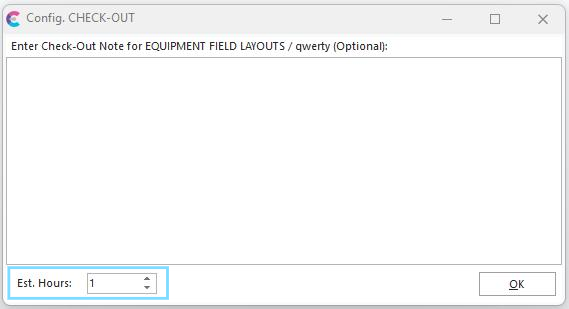
·Prompt for Comment Upon Lock: When on, this option will prompt for a comment when a lock is created before a config. change. This same dialog will also display the 'Est. Hours', which can be defaulted from the 'Est. Hours Upon Lock - Default' option above. This comment is only required if the 'Require Comment Upon Lock' option is turned ON.

·Prompt for Comment Upon Save/Archive: When on, this option prompts a comment when an archive is created for a config. change. This comment is only required if the 'Require Comment Upon Save/Archive' option is turned ON.

·Prompt to Retain Lock: When on, this option prompts for a yes/no decision about retaining the lock, displayed each time the lock would normally automatically be removed.

·Require Comment Upon Lock: When on, this option requires inputting a comment prior to configuration lock. Note: this option will only be appropriate if the 'Prompt for Comment Upon Lock' is also turned ON. So, when prompted for a comment, this option requires text to be input before proceeding.
·Require Comment Upon Save/Archive: When on, this option requires a comment to be input before each configuration change. Note: this option will only be appropriate if the 'Prompt for Comment Upon Save/Archive' is also turned ON. So, when prompted for a comment, this option requires text to be input before proceeding.
·Use Locking: this option enables/disables the locking of each config. item, as seen on the 'Locks' tab.
Restart IndySoft sessions to see updates to these system-wide settings.
Settings (Profile-based)
Several other settings related to the Config. Changes Utility can be set per profile in the Profile Manager - see the 'Config. Changes Utility' security group:

Restart IndySoft sessions to see updates to these security settings. |