Automatic Numbering
The automatic numbering features in IndySoft are very powerful. You have several different options to choose from when setting up an equipment auto-numbering system. Choose Utilities: Automatic Numbering Setup... from the Admin Panel to set up autonumbering. Note: This will NOT perform automatic numbering; it will only configure it for later use.
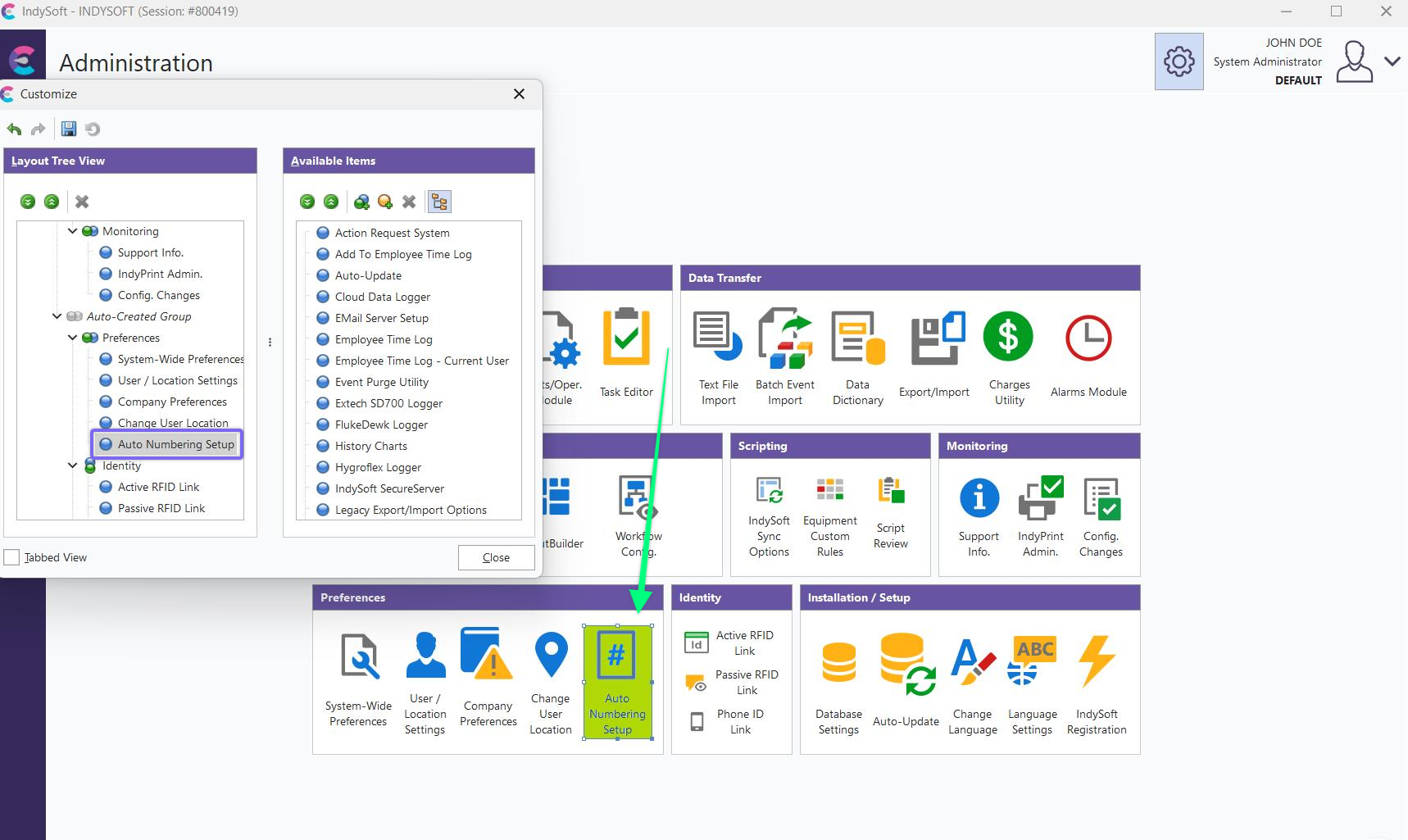
IndySoft Home Page - Options ... Auto-Numbering Setup
Also, knowing that you will probably use this strictly for your own gages and standards is important. When working with a customer's gages, you will probably use their numbering system, perhaps with a customer-specific prefix.
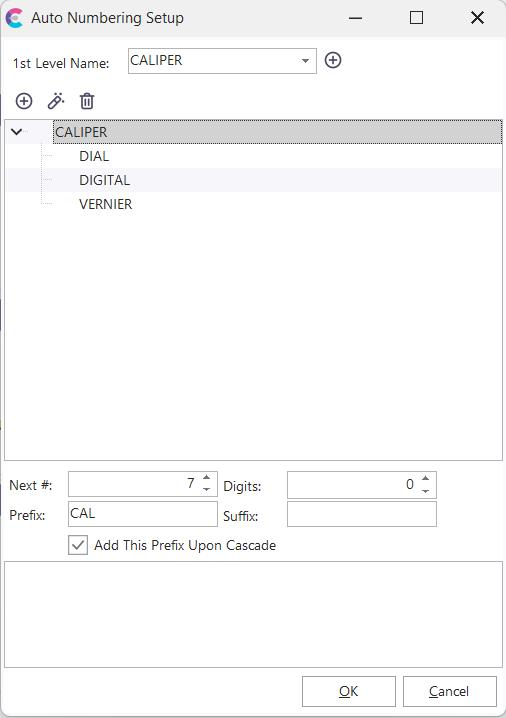
Automatic Numbering Setup Dialog
Building An Automatic Numbering System
You will need to create a rule for each type of item you wish to auto-number in your system. To start with, create a 1st Level Name using the  button. Under that, you can create sub-levels using the
  button. In this case, there are three types of CALIPERS: DIGITAL, DIAL, and VERNIER. You can use the
  button to change a level's name and the
  button to remove a level.
Once you have created the levels for a particular type of numbering, you will create a rule. At each level, Next # indicates the next number that the system will use, and Digits indicates how many digits will be used to display the number. In the example below, a VERNIER CALIPER will be numbered 0001 (ignoring the prefix). Zeros are used to pad the number up to the required number of digits.
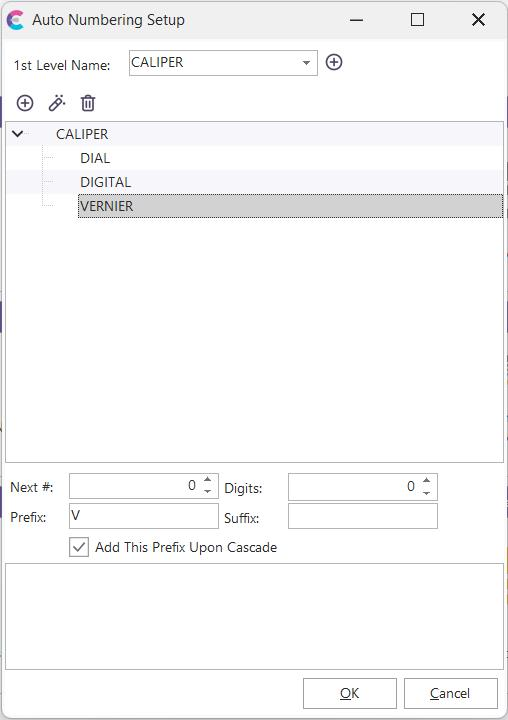
Automatic Numbering Setup - Editing A SubLevel
A Prefix and Suffix give additional characters that will be placed before/after the number. A Prefix can also be set to cascade to sublevels. In the above examples, 'C' is cascaded down to sublevels so that the next VERNIER CALIPER will be given AutoNumber CV0001. Note that the sublevel's prefix is added after the prefixes of levels above it. There is also a space for adding notes.
Using An Automatic Numbering System
To AutoNumber a new piece of equipment, press the  New Equipment button, then choose Options: AutoNumber... and select the Auto Numbering rule you want to apply to your equipment. You can check Find Unused Numbers When Auto Numbering if you want to check for a skipped number. Hit OK, and your equipment will be numbered according to your selected rule. In this case, the auto-number result would be CV0001.
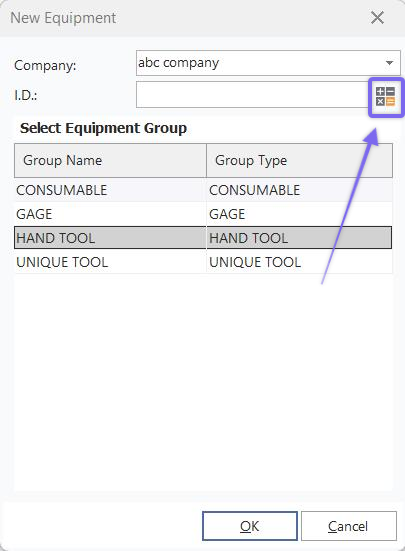
New equipment dialog - Calculate Serial Number
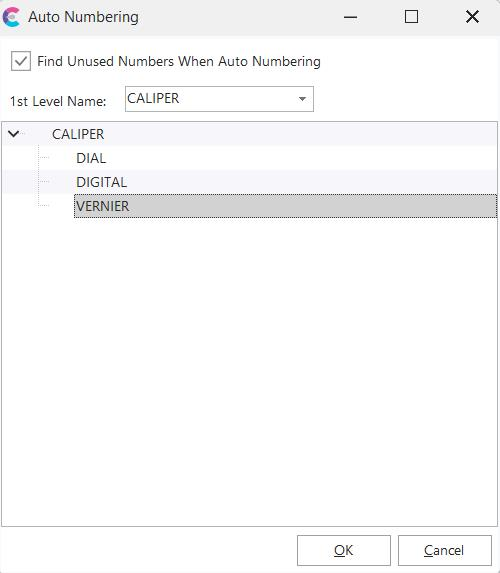
Automatic Numbering Dialog
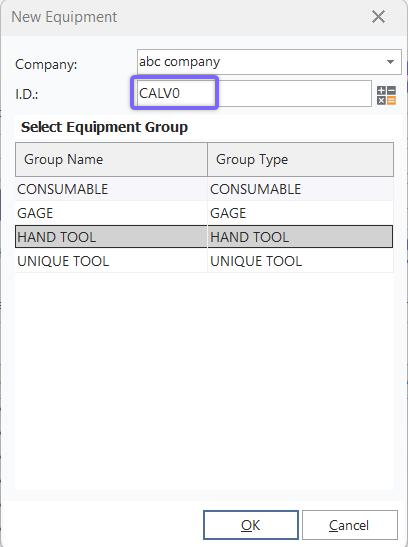
Automatic Numbering Dialog - Autonumber ID |