Charge Templates
The Charge Templates Utility can quickly set up a set of charges used by multiple templates and/or assets. So, if you find yourself continually setting up the same CALIBRATION, REPAIR charges (as an example) on multiple templates or assets, then using a charge template might be easier to standardize this set of charges. This way, any modifications to this slate of charges can be made in one place. These changes will automatically affect:
- All templates that are related to this charge template
- All equipment that is linked to templates that are linked to this charge template
- All equipment that is directly linked to this charge template
It is highly recommended that organizations use the Charge Template Referential Lookups and Functionality in addition to the New Charge discount method when using Charge Templates. This will provide speed, data, and data integrity improvements including a way to import to update all of your charge template charges from an excel file in bulk. This feature was introduced in 14.1.6.
Setting up a charge template gives you a central point in the interface for editing this common group of charges. These templates also allow for quick reference to all related templates and assets.
Charge Templates can be selected for an asset or a template from the Charges detail tab/dialog within Dashboard main screen or Template Editor. Click on the hyperlink field to associate a charge template with this asset/template.
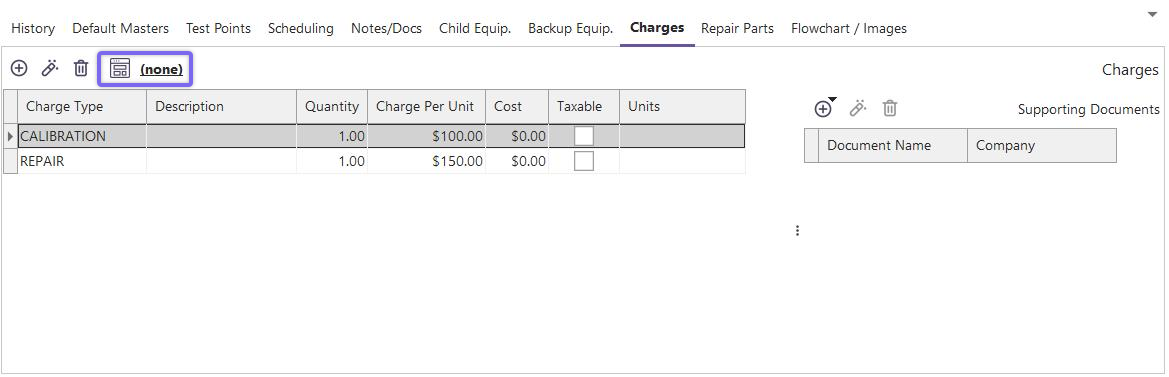
Assigning Charge Template
Once a charge template has been associated with a template/asset, all charges are synced from the charge template to this asset/template and all other related assets/templates. Any editing of charges will be blocked from the Charges tab on these related assets/templates:
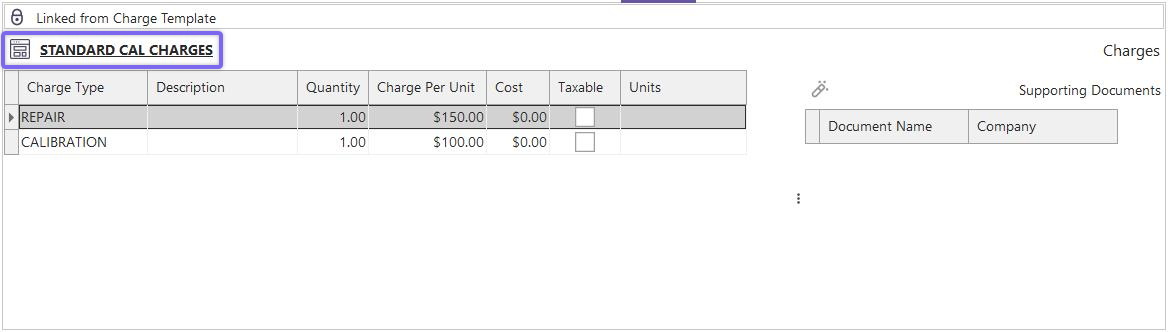
Linked Charge Template
 Press the 'Edit Charges Template' button to launch the Charge Template Editor quickly. Note: If the currently selected asset/template already has a charge template selected, this charge template will be automatically located upon launch of the Charge Template Editor.
Charge Templates Editor
Use the Charge Templates Editor to add new charge templates and edit existing ones quickly.
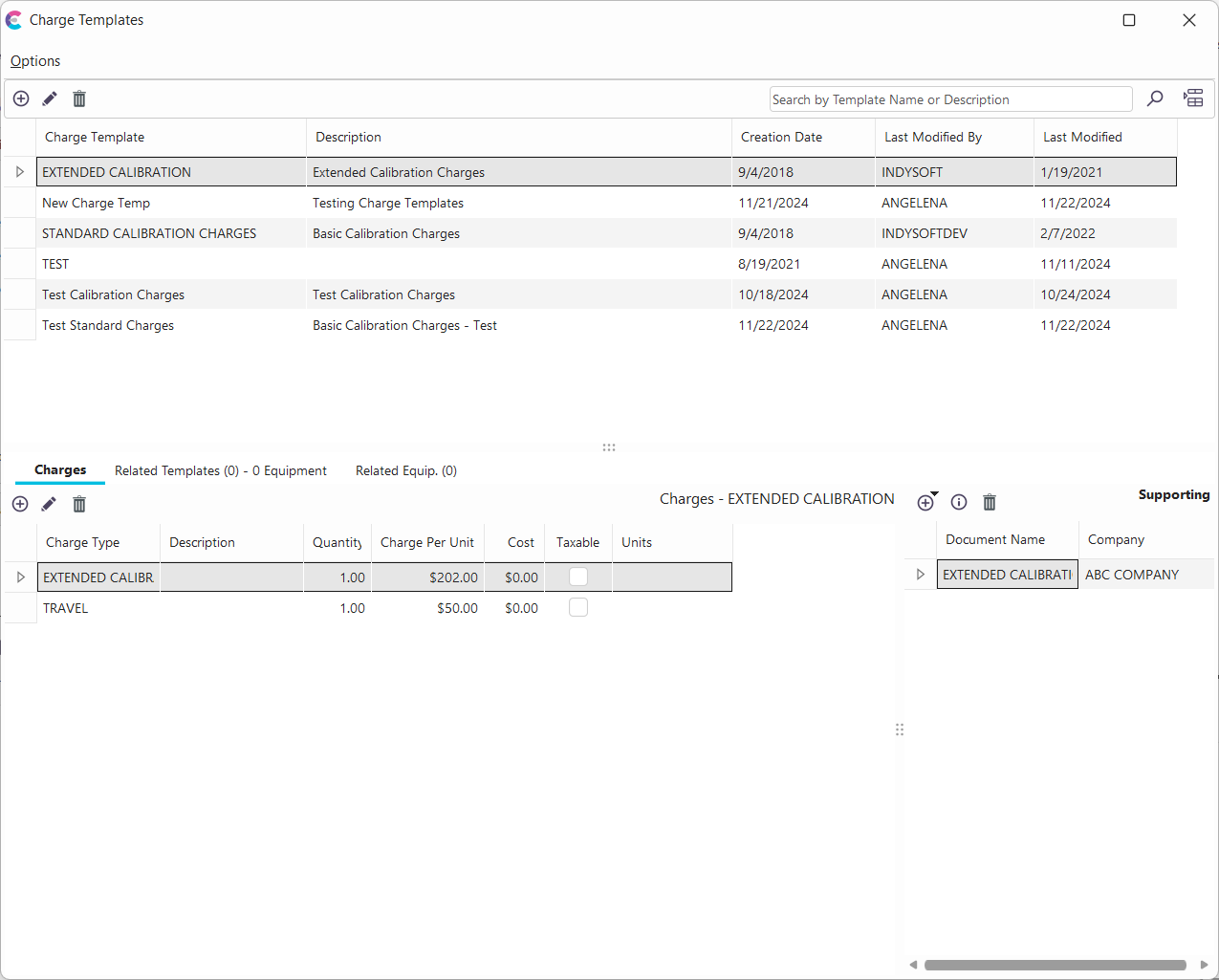
Charge Templates Editor
The header provides several options for quickly locating an existing charge template or adding/editing a charge template:
 New Charge Template - Creates a new charge template with an empty set of charges. Note that from the Options menu, you can clone a charge template - if you prefer to begin with a clone of charges from another template.
 Modify Charge Template - Modifies the currently selected charge template name/description
 Delete Charge Template - Deletes the currently selected charge template
 Search by Charge Template Name - Searches the current grid of charge templates using the embedded search field
 Show all - displays all the charge templates in the system
All the above header buttons are duplicated in the main menu options. A few additional items are provided in the main menu:

Sync With Main Screen - Toggle this option on/off if you prefer that changes to the currently selected charge template be automatically refreshed on Dashboard or Template Editor (if open). Note: If you launched Charge Template Editor from the Dashboard main screen, then changes will only be reflected upon exit of the Charge Templates Editor - the same applies to Template Editor.
Clone Charge Template - Clones the currently selected charge template to a new name. All charges will be retained in the new charge template.
Modify Current Charge Template Name - Allows you to change the name of the currently selected charge template quickly. Note that after initially creating the charge template, the 'Charge Template' edit box is disabled from the edit. This is the point users to this 'Modify Current Charge Template' menu option to change the name. This name change operation ensures that all related assets/templates have their charge template name modified to retain the link.
Exit - Closes the Charge Templates Editor.
On the bottom of the Charge Templates editor, there are three tabs:
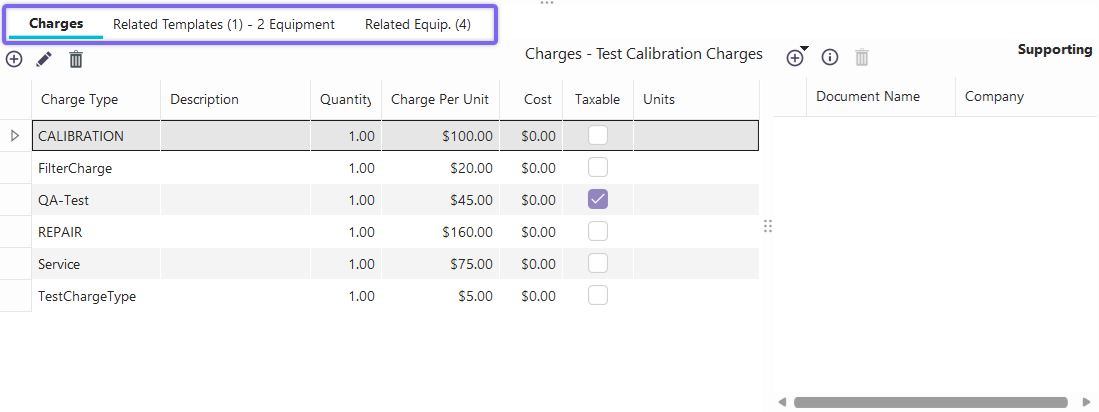
Detail Tabs - Charge Templates
Charges - Use this tab to add/edit charges related to this template. This interface is identical to adding/editing charges from the Charges tab in Dashboard or Template Editor. Remember that these changes are automatically synced to all related templates/assets!
Related Templates - This grid summarizes all templates currently linked to this charge template. Suppose the Charge Templates Editor was launched from Dashboard, and Template Editor is already running. In that case, you can double-click on a template from this grid, which will automatically be selected in Template Editor.
Related Equip. - This grid summarizes all assets directly linked to this charge template. If the Charge Templates Editor was launched from Template Editor, and the Dashboard screen is running, double-click on an asset from this grid and automatically select it in Dashboard main screen.
Note: There might be additional assets indirectly linked to this charge template through a link to a template that is then linked to this charge template. The number of these indirectly linked assets is noted in the 'Related Equip.' column in the 'Related Templates' grid. Also, a total of Related Equip. is shown on the Related Templates tab next to the count of related templates. So, the total number of assets linked directly or indirectly to a charge template can be noted by adding together these two numbers:

Related Equipment - Charge Templates |