Data Exchange Module - Options Menu
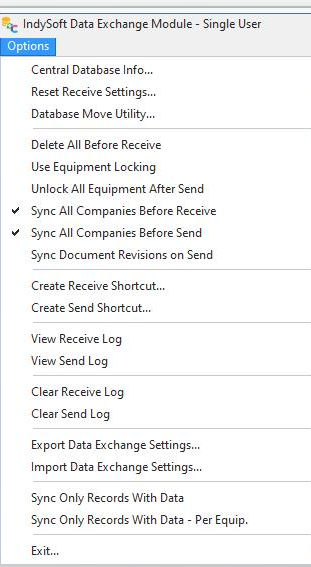
Options Menu
Central Database Info
Select this dialog to set the connection information into your 3-Tier IndySoft central database. 'Central Server Address' and 'Central Server Port' values are required. For an example of correct values, find a client workstation currently accessing your 3-Tier IndySoft central database, and run Database Settings from this client's computer. Note the 'Application Server Name' and 'Application Server Port' values, and copy these to the 'Central Database Info.' dialog in the Single User's Data Exchange Module. Note: your Single User IndySoft computer will need to be attached to your network (so it can access the 3-Tier IndySoft database) for these options to be correctly utilized.
Reset Receive Settings
This option will reset the grid values on the 'Receive Information' tab in the Data Exchange Module to the presets defined upon installation of IndySoft.
Database Move Utility
This option can be used to make a complete copy of the current Single-User database to a central database or to restore the current Single-User database from another Single-User database already stored in a central network location (from this same utility). Use the upload or download buttons to activate either operation. So this utility gives the quickest-possible sync of an entire Single-User database (all add/edit lists, configuration, assets, etc.) that has been made available for sync in a central location.
Delete All Before Receive
Suppose this item is checked upon the next Receive operation (regardless of your choice of 'Company/Selection Type' in the setup grid). In that case, ALL equipment and ALL work orders will be deleted from the single-user database. There is first a confirmation dialog. If the Receive setup grid has set up a Company filter for the 'EQUIPMENT' line, only equipment from this Company will be deleted. If you select '--Select Work Order(s)' or '--Select Equipment,' or 'ALL' for the 'Company/Selection Type,' then ALL equipment in the database and ALL work orders will be deleted. This operation creates a 'clean slate' in the single-user database.
Use Equipment Locking
Equipment Locking can lock the equipment in the Multi-User database temporarily synced to a mobile Single-User database for outside service work. If this option is enabled, then upon Receive sync (Multi-User to Single-User), the asset is locked in the Multi-User database, which blocks any edits/events. However, the asset is unlocked in the Single-User database, where service work is completed. Upon sending sync (Single-User back to Multi-User), the asset is unlocked in the multi-user database, ready for normal edits/events to resume.
Unlock All Equipment After Send
This option can automatically unlock all assets currently locked by the user in the Multi-User database after a Send update (from Single-User to Multi-User). Suppose the Send update is based on selected work orders. In that case, all assets locked to the current user will be unlocked (as if to say...any future work that I need to do in this Single-User database will be synced again first before I head back out into the field - so it is ok for work to continue in the Multi-User database on all my assets). Suppose the Send update is based on individual assets. In that case, a confirmation dialog will first appear if the 'Use Equipment Locking' option above is turned on and the asset being synced still has incomplete Scheduled Work items when synced.
Sync All Companies Before Receive
This option can be used to force a sync of all companies from Multi-User to Single-User database before any receive sync.
Sync All Companies Before Send
This option can force a sync of all companies from Single-User to Multi-User database before any send sync.
Sync Document Revisions On Send
This option forces a specific sync of add/edit documents upon sending an update (Single-User to Multi-User). Say an asset in Multi-User has related Equipment Documents (Documents detail tab/dialog on Equipment View). This asset and related documents are synced normally in a Receive operation before the tech enters the field. In the field, say this technician needs to use the Add/Edit...Documents dialog within Single-User to add a new document or a new document revision for this asset to complete the work in the field. Suppose this option is enabled upon sending an update (Single-User back to Multi-User). In that case, each asset will check its related Equipment Documents and see if this document and any revisions need to be synced back into Multi-User. Note that this does NOT ensure a full sync of all Single-User Add/Edit...Documents to the Multi-User database - only the documents linked to assets synced within this operation.
Create Receive Shortcut
This option will create a Windows shortcut icon for a selected Receive Template on the 'Receive Information' tab. This shortcut can launch a 'Receive Information' sync directly from your Windows Desktop. Running a 'Receive Update' from this icon will hide the Data Exchange Module's main screen and shield the user from any setup complexity. When this icon is utilized, you will be prompted for the 'Last Modified On' date filter, if appropriate.
Create Send Shortcut
This option will create a Windows shortcut icon for the 'Send Update' on the 'Send Updated Information' tab. For example, this shortcut can launch a 'Send Update' sync directly from your Windows Desktop. Running a 'Send Update' from this icon will hide the Data Exchange Module's main screen and shield the user from any setup complexity. When this icon is utilized, you will be prompted for the 'Last Modified On' date filter, if appropriate.
View Receive Log
The Data Exchange Module maintains a detailed log of all 'Receive Information' sync operations. To view this log, select this menu option.
View Send Log
The Data Exchange Module maintains a detailed log of all 'Send Updated Information' sync operations. To view this log, select this menu option.
Clear Receive Log
This menu option will clear the 'Receive Log' maintained by the Data Exchange Module.
Clear Send Log
This menu option will clear the 'Send Log' maintained by the Data Exchange Module.
Export Data Exchange Settings
This menu option takes a snapshot of all current menu settings (Options menu). It saves them to an INI file that can load the same settings on another workstation using the 'Import Data Exchange Settings' option.
Import Data Exchange Settings
This menu option allows you to load menu settings from another workstation exported using the 'Export Data Exchange Settings' menu option. Select the INI file as created on the other workstation.
Sync Only Records With Data
Note: This menu item will be hidden if a System-Wide Preference Variable is named 'DISABLE_DE_GLOBAL' (use 1 or 0 in Integer value to turn on/off). If shown, this menu item will turn off any SQL COUNT(*) operations that precede the syncing of various non-equipment tables in the sync. Leaving this menu item OFF will speed up a sync in most cases. Only in scenarios where you are syncing a very large # of records and a significant percentage of the detail tables in this data are not being used, this option is turned ON might speed up the sync.
Sync Only Records With Data - Per Equip.
Note: This menu item will be hidden if a System-Wide Preference Variable is set up named 'DISABLE_DE_PEREQUIP' (use 1 or 0 in Integer value to turn on/off). If shown, this menu item will turn off any SQL COUNT(*) operations that precede the syncing of various equipment tables in the sync. Leaving this menu item OFF will speed up a sync in most cases. Only in scenarios where you are syncing a very large # of assets and a significant percentage of the detail tables in this data are not being used that this option is turned ON might speed up the sync. For instance, if you are syncing 3,000 assets and most of these assets don't use any test points, masters, charges, or other detail tables - then these pre-COUNT operations might speed the sync.
Exit
Exits the Data Exchange Module |