User Keys
Unique User keys must be created by each user (from IndySoft Tech Sync's Setup IndySoft Secure Server Connection dialog) and sent to the server for import.
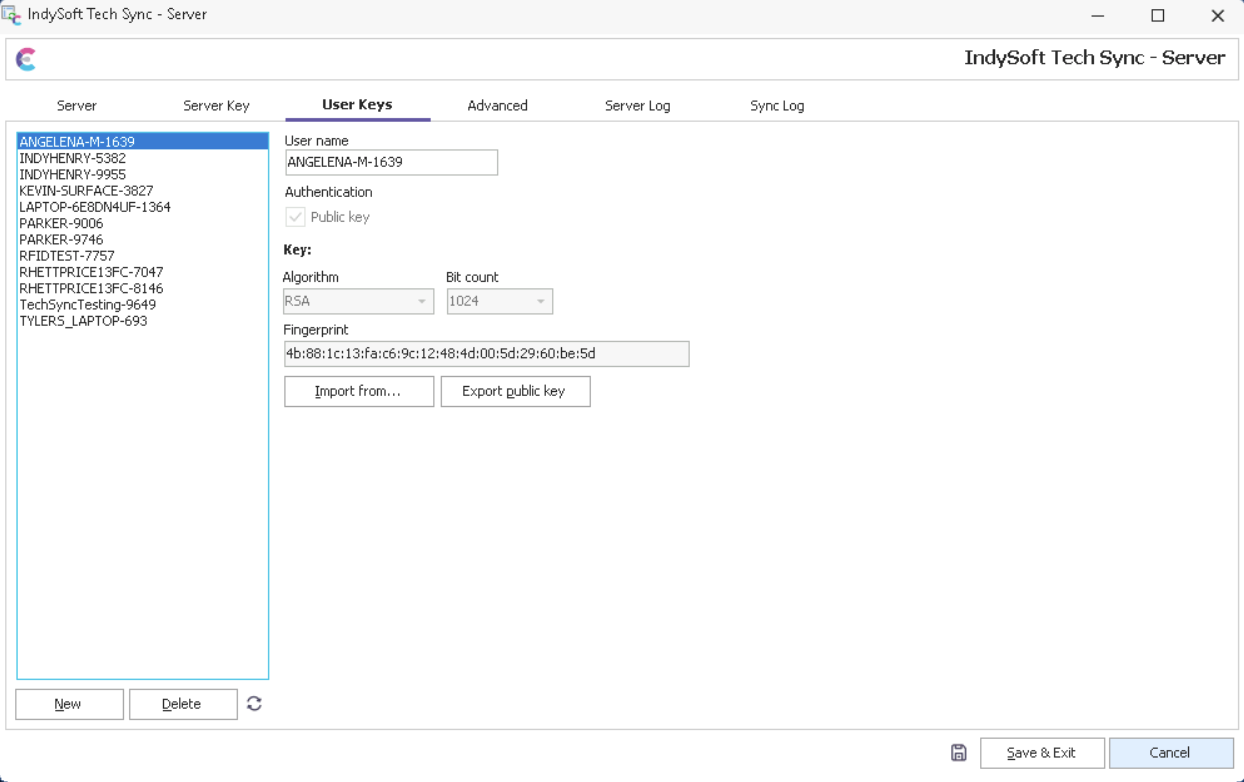
IndySoft Secure Server - User Keys Tab
The server administrator (as setup on Server tab) will receive emails from users requesting access to the Secure Server. The email request will look something like:
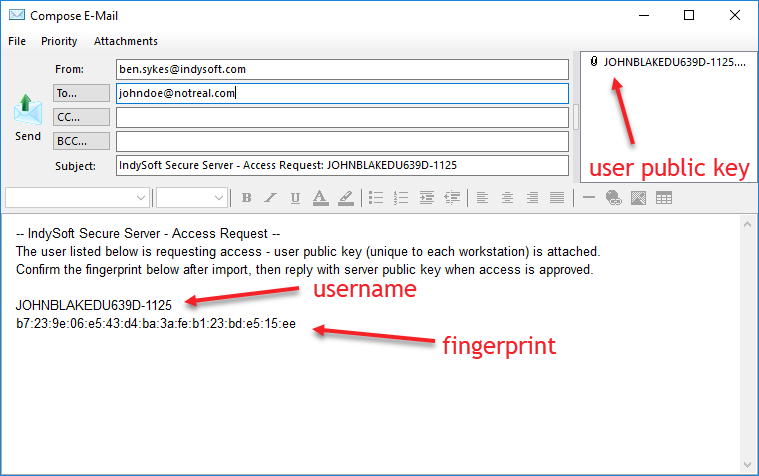
User Access Request Example
This email lists the user requesting access and the file attachment contains the user's public key, ready for import. The username likely corresponds to the workstation name followed by a random number. If the Admin. agrees that the user (based on workstatio name, email address, etc.) should be allowed access, then the Admin. will press 'New' to create a new user. The username can then be cut/pasted into the dialog:

New User
After creating the user name, next import the public key file that was attached to the email, using the 'Import From' button. After successful import a response email will automatically be created that lists the username that was approved, and contains the server public key as an attachment:
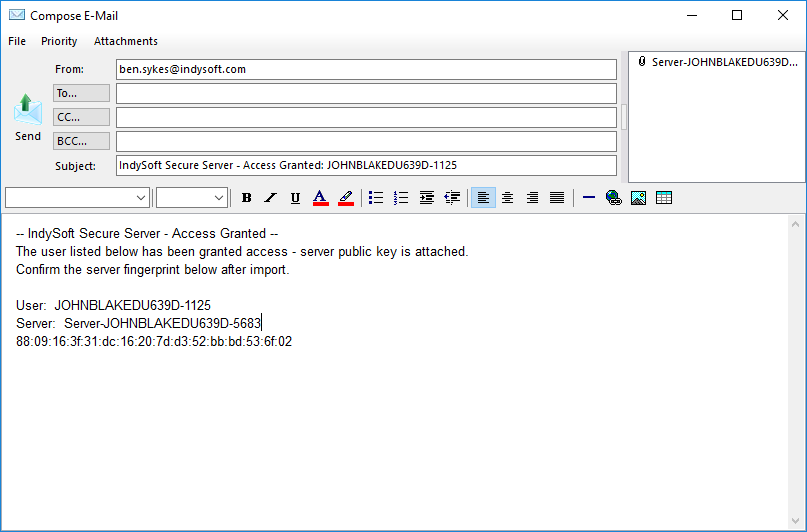
Simply fill in the employee email address (from the previous email) to complete the request. Once the user receives this email they will save the server public key file and import it in their IndySoft Tech Sync Setup IndySoft Secure Server Connection dialog.
Note: the 'Export Public Key' button is only needed in rare instances where you need to recreate the original public key provided by the user. |