Profile Manager - Adding/Removing Profiles
Add Profile Option
The Profile Manager allows you to control the names and passwords of users with access to IndySoft. In addition, the Profile Manager will enable you to manage each user's access level (Profile). IndySoft ships with five default access levels. These access levels can be cloned and modified to create as many other access levels as desired. For instance, you could make your own 'Quality Admin.' Profile. Here is how you would do it:
- Launch the Profile Manager while logged in as a user with a 'System Administrator' profile.
2. Under the 'Options' menu, choose 'Add Profile' or click on the icon in the toolbar.

Add New Security Profile Dialog
- Enter a unique name for the new Profile (for example, 'Quality Admin').
4. From the 'Base Profile On' drop-down, choose one of the current profiles from which the new Profile should be cloned. In our example above, we decided on 'System Administrator.'
5. Press 'OK.'
Your new custom profile should appear alphabetically in the Profiles panel with the other profiles. You can double-click on any profile to see a list of the available security categories for each. All profiles have the same security categories. The differences between the profiles are based on which particular security items are allowed/disallowed within each security category. To turn on a particular security item, click on the checkbox to the left of the text so that the checkbox has a check in it. To assign the new custom profile to one of your users, click and drag the Profile name from the 'Profiles' outline box onto the User Name in the 'Users' outline box on the left.
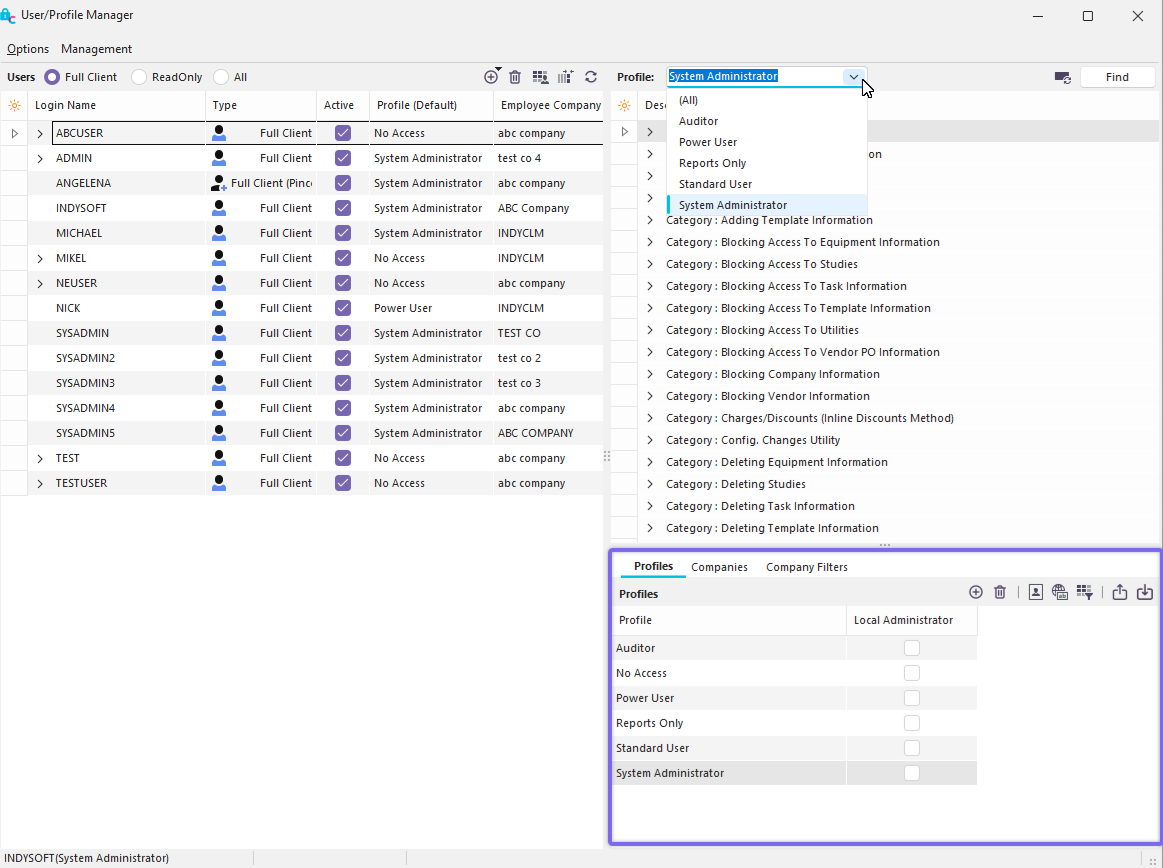
Profile Manager - Profiles
Note: To add a profile, you can also use the keyboard shortcut: Ctrl+P
Delete Profile Option
To delete a profile, highlight the Profile and choose the Delete Profile menu option or click on the  icon in the toolbar.
Note: To delete a profile, you can also use the keyboard shortcut: Ctrl+E |