Parts And Operations Module - Add/Edit Detail Types
Detail types control the # of fields visible in the detail type - if it is shown in the detail of a part/operation (a sub-tab in the bottom half of the part/operation dialog):
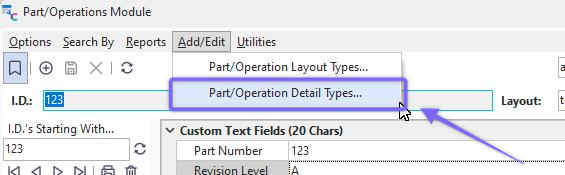
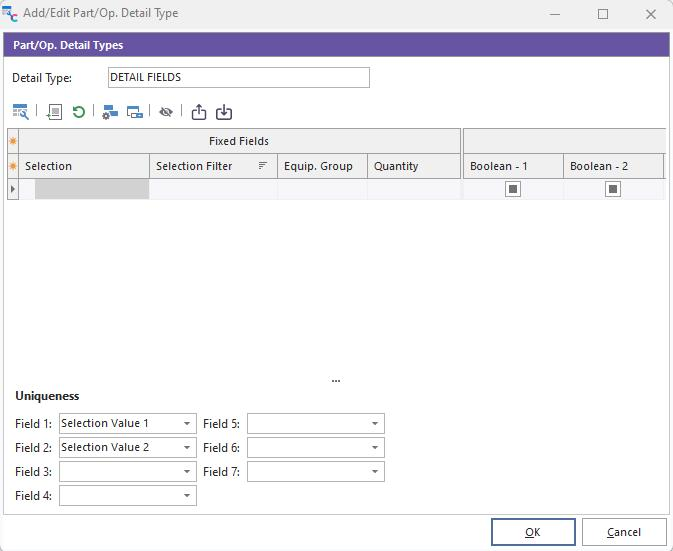
Add/Edit Detail Type
The fields in the detail type can be modified on the top of the dialog, and field security can be modified. Finally, designate up to 7 layout fields that can be combined to form a uniqueness constraint for all detail-type records. To design the fields used in a detail grid:
 Customize Fields
This option will display a small floating dialog where fields can be dragged into and out of the current detail grid. You will note that dozens of fields of various types are allowed. The captions of the fields can be changed with the 'Customize Caption For Selected Field' option - so use 'Customize Fields' simply to add/edit the correct number and type of fields. When this dialog is visible, it is also possible to drag/drop the detail grid fields to various positions.
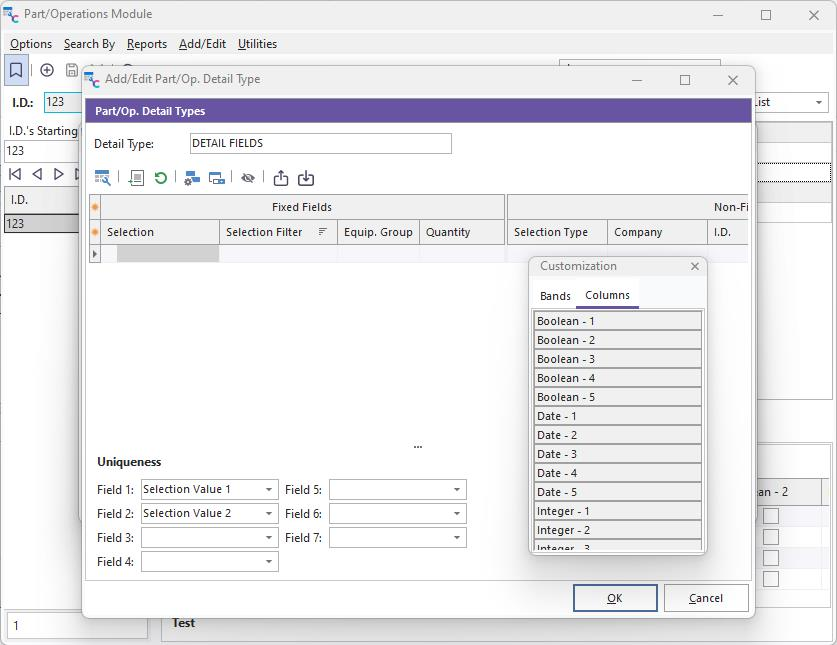
Add/Edit Detail Types...Customize Fields
Note that fields can be placed in one of two default bands - 'Fixed Fields' and 'Non-Fixed Fields.' These band titles will not be visible when the detailed layout is on the main dialog. Fields in the 'Fixed Fields' band will hug the left side of the screen and always remain visible (so fields are 'fixed' to the left). 'Non-Fixed Fields' can be scrolled horizontally through the rest of the available space. If desired, you can add additional non-fixed bands from the 'Bands' tab in the 'Customization' dialog. Hint: The fields in the grid layout header can be stretched in size to be taller than one row, and fields can be dragged/dropped into positions on a new row below the current row if desired. In the example below, the 'Boolean - 4' field is about to be placed on a new third row beneath 'Boolean - 2' on row 2:
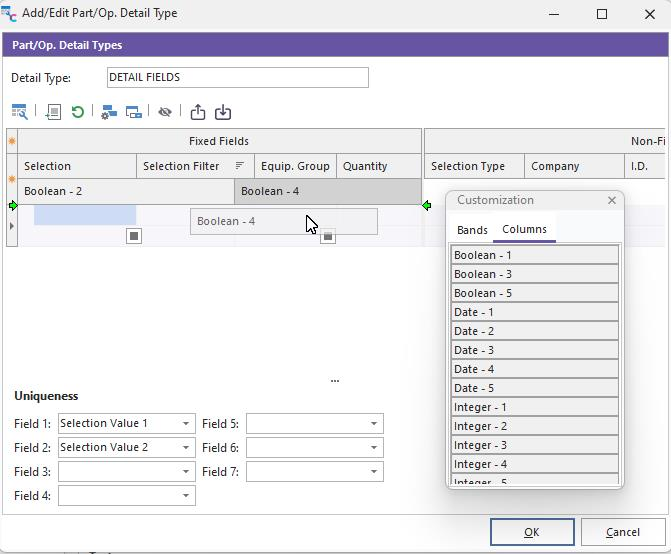
Add/Edit Part/Op. Detail Type - Create New Field Rows
 Customize Caption For Selected Field
This option will pop up a small dialog for inputting a custom caption for the current field. If no caption is given, the default name will be used (which typically corresponds to the field type and size.
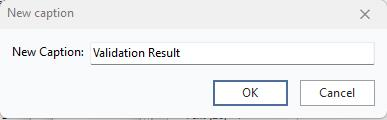
New Caption
 Reset Caption For Selected Field
This option will reset the caption for the current field to its original name - which typically corresponds to the field type and size.
 Field Security
This option will display a dialog for editing various security options for this field. Security values can be set across profiles, as defined in Profile Manager. See the text description of each security item for more details. Security settings are loaded each time the parts/operations module is started.
 Modify Selection List Items
If the current field is text-based and includes a drop-down list - use this option to modify the selection list items available to the user when editing the field from the parts/operations main screen.
 Hide All Fields
Use this option to set all layout fields non-visible for the current layout quickly. This is helpful if you only want to show a small # of fields - it is quicker to hide them all and then use the 'Customize Fields' option to display only the fields desired quickly.
 Export Details Layout
Use this option to quickly export a details layout to a zip file - for import through the 'Import Details Layout' option.
 Import Details Layout
Use this option to quickly import a details layout to a zip file - as exported from the 'Export Details Layout' option. |