Legacy Export/Import Utility - Import From Customer
As a calibration lab, when you receive exported customer data, you must import it into your system to update your records. Begin this process by selecting Utilities: Import Information: From IndySoft Customer...or Utilities: Import Information: From EnGage! Customer...
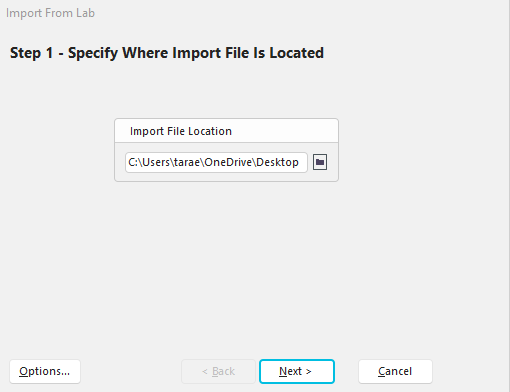
Import From Customer - Step 1
The first step is to specify the file name of the data to be imported.
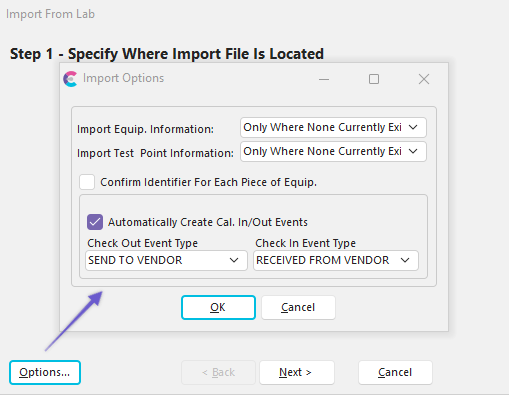
Import Options
If you press 'Options...', you will have several important options that can affect how the data is imported. Import Equip. Information and Import, Test point Information, have three options:
Always - This option will overwrite any information you had with the information in the import file.
Only Where None Currently Exists - This option will attempt to 'fill in the blanks' but will not change any existing information.
Never - This option will not import information.
Confirm Identifier For Each Piece of Equip. allows you to make sure the correct company/equipment ID is being used.
Automatically Create Cal. In/Out events allow you to create records of receiving the equipment if desired.

Company Mapping
Use the dialog above (when prompted) to map the company name as used in the import file to a company existing in your database. This allows you to import assets from customers using IndySoft software but with differing company names.

Export/Import History
Finally, you are provided a summary report for all export/import events performed. After performing the receiving event, you should have the following information updated in your database: Equipment information in the main area, Additional Info tab, Calibration Info tab, Test Points tab, and Scheduling tab. It will not pull in customer events, documents, etc. |