Search By Dialogs
There are eight standard search-by dialogs that are used for quickly finding assets within the current company by searching on the most common header fields.
Note: if you have modified the field captions for certain fields per company in IndySoft, you might see slightly different captions than those displayed below. See company preferences for more details.

'Search By' Options in Header
The first three search-by dialogs search upon a single field of information:
·I.D.
·Serial Number
·Description
The following four search-by dialogs are very similar in interface to the first 3, but they search upon two related fields together:
·Type/Sub-Type
·Crib Number/Bin Number
·Current Location/Sublocation
·Manufacturer/Model #
Finally, an 'I.D. (Across All Companies)' search by is included. This is identical to the 'I.D.' search but selects from assets across all companies, not simply the current company.
·I.D. (Across All Companies)
Single Field Search Dialogs
When you select a single-field search dialog, you will see a screen as in the below example - with a single edit field above a results grid:
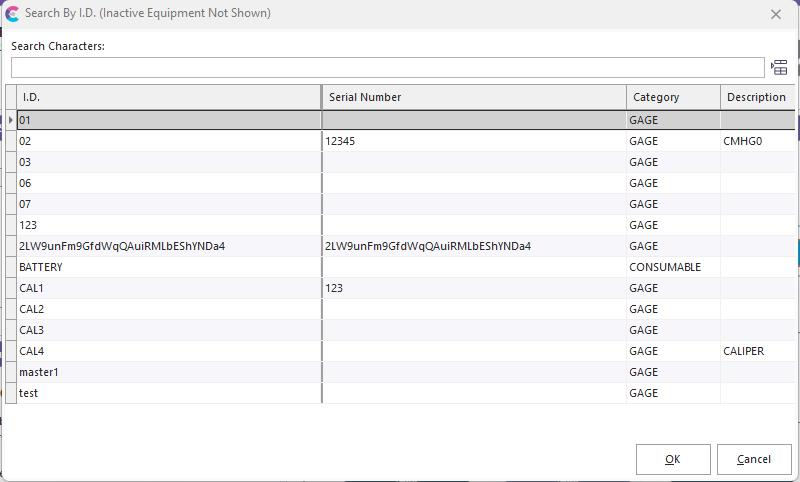
Single-Field Search Dialog
In general, you could type as many characters as you know into the edit box above the grid, then select from the results in the grid. Once you have selected the record in the grid, either double-click on the grid record or press OK to close the dialog. The selected asset will be found on the Equipment View.
 List All - press this button to force a selection of all the records for the current company.
Note: the first and main single-field search by dialog is 'I.D.' (caption might vary depending on your company preference).
Also, after using the Advanced Company Search dialog to successfully locate a company the 'Search by I.D.' dialog will be called automatically to locate an asset from within that company.
Right-Mouse Click Options in Search-By Dialogs
You will note several options available through a right-mouse click on the results grid:
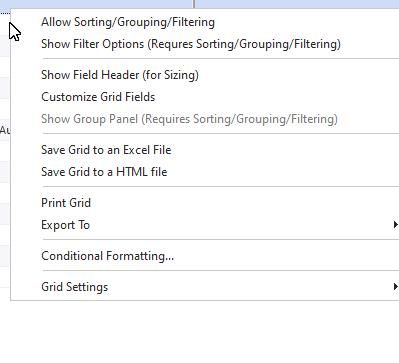
Search-By Dialogs - Right Mouse Click Options in Grid
- Allow Sorting/Grouping/Filtering
Enabling this option (by clicking on it) will force all records to be loaded into memory each time a search is executed. For example, if your result set includes 2,500 assets you might only be able to see the top 25 in the grid at any time (depending on the height of your form). When this option is unchecked IndySoft can save a bit of time by not loading the remaining items into memory until needed. But you if require more advanced options like sorting/grouping/filtering, then this option must be enabled.
- Show Filter Options (Requires Sorting/Grouping/Filtering)
When this option is enabled you will see a filter option for each field in the grid header. You can click on this option to set up a quick filter for each field - multiple filters can be used together.
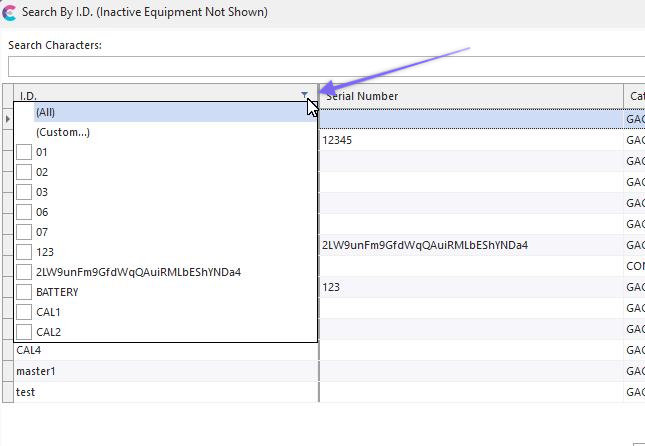
Equipment Filtering
- Show Field Header (for Sizing)
You will note that there are 2 groups of fields. The 'left-most' columns are part of a 'fixed' band that always hugs the left side of the grid and are always visible regardless of horizontal scrolling through the remaining columns. The 'right-most' columns are 'non-fixed' and can be freely scrolled. Enabling this option will show these 2 band titles, to more easily see the division.
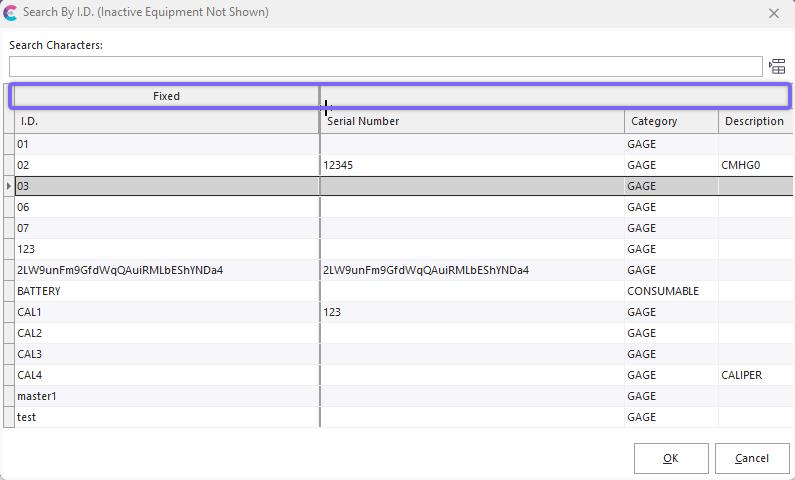
Fixed / Non-Fixed Bands
- Customize Grid Fields - see Customize Fields for more details
- Show Group Panel (Requires Sorting/Grouping/Filtering) - see Show Group Panel for more details
- Save Grid to an Excel File - see Save Grid To An Excel File for more details.
- Save Grid to a HTML File.
- Print Grid - see Print Grid (Preview) for more details.
- Export To - see Export To Options for more details.
- Conditional Formatting... - see Conditional Formatting for more details.
- Grid Settings - see Grid Settings for more details.
User/Location Settings Related to Search-By Dialogs
There are many options that can change the behavior of this search-by dialog, however - and these options can greatly affect the speed and efficiency of your searching. Many of these options are user-specific, so they are set under User/Location Settings - General:
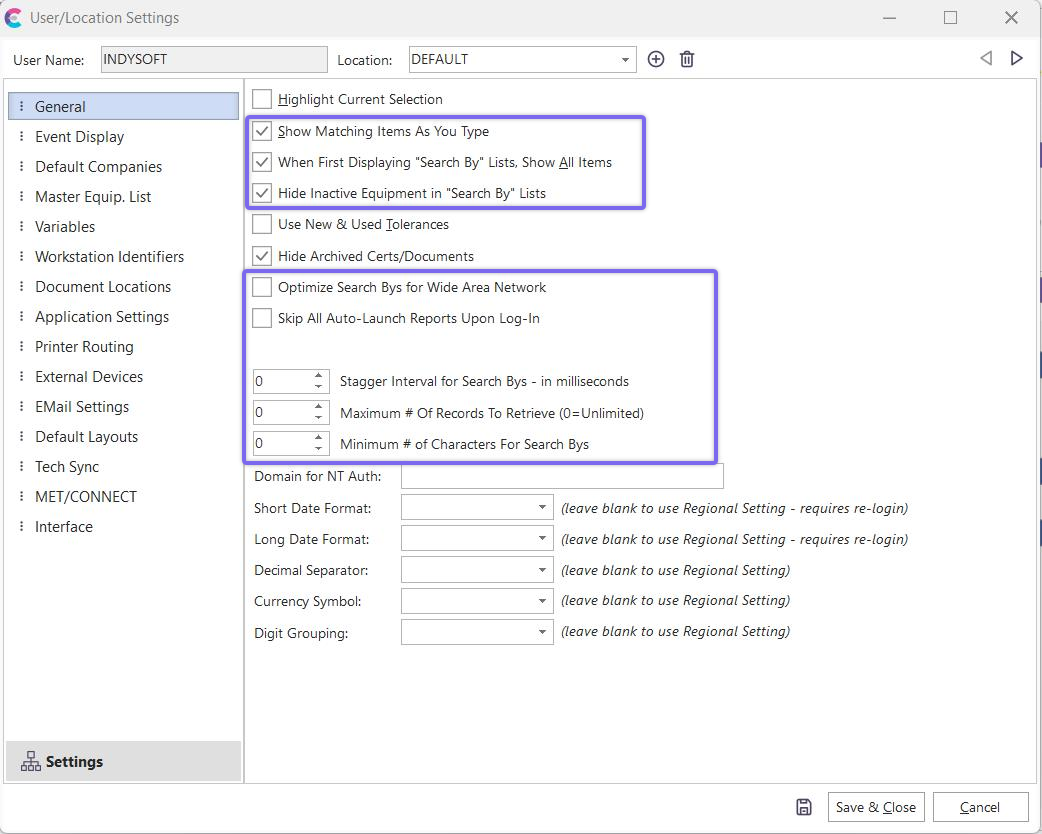
Search-By Related Options in User/Location Settings
- Displaying 'Search By' Lists, Show All Items
If this option is checked, then upon entry into the search by dialogs (single-field and multi-field) the grid will be automatically populated with ALL the equipment for the current company. This allows users to quickly scroll the grid to find the appropriate asset - assuming there is a limited number to choose from then this 'browsing' would be helpful. If you have thousands of assets for each company, however (which is very common), then it is suggested that you turn this option OFF. This will speed up the initial display of the dialog since all records do not have to be returned. The user will then input search characters to begin the search.
- Hide Inactive Equipment in 'Search By' Lists
Select this option to automatically filter out any 'Inactive' assets from search by results. This is related to the 'Active' Equipment Status field. When this filter is in place you will see a note in the search-by dialog caption bar:
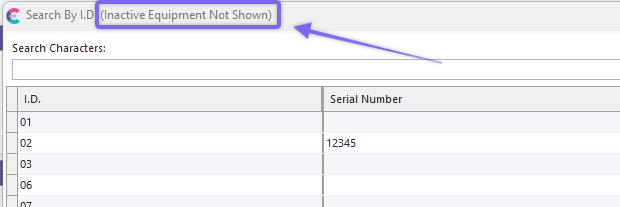
Note for Inactive Equipment Filter
- Optimize Search Bys for Wide Area Network
If this option is NOT checked, then as the user types search characters into the edit box above the grid each keyboard stroke will re-execute the search, and the results will be updated in the grid below. For example, say you are searching on assets in the 'ABC COMPANY'. You enter the search-by dialog and type 'A' - the grid is immediately filtered to only show assets that start with the letter 'A'. Then you type a second character 'B' - the grid is filtered again, now showing only assets that start with 'AB,' and so on. This search method is very interactive - you can see the search results (the number of records in the grid) getting smaller as you type - but it is generally inefficient across a slower network, especially if you have a large number of records in your database for the current company.
So, in these situations, it is advisable to turn ON this option. When this option is enabled, the user can freely type search characters into the edit box above the grid and a search will not be re-executed until they press the 'Enter' key on their keyboard. This allows them to volunteer as much information as possible before searching, to ensure the smallest result set. If the result set (# of records) is only 1, then the dialog knows that it has found the correct asset, and this asset is immediately returned to the main screen. If multiple records are returned, the user selects the correct asset in the results grid and presses the 'OK' button to select the asset - or 'Ctrl+Enter' keyboard combination can be used.
- Stagger Interval for Search Bys (in milliseconds)
This option requires a certain number of milliseconds of 'lag' to occur before the result set is returned into the grid. This allows users to type at a consistent speed to input as many search characters as they can but will execute the search automatically after the 'lag' interval - without requiring the user to press the 'Enter' key.
- Maximum # of Equipment To Retrieve (0 = Unlimited)
Even with the options above, it is still possible for users to search within a company that has (for example) 500,000 assets and start by typing only the '1' key, then press 'Enter' to execute the search. In this example, there might still be 45,000 assets within that company that begin with the '1' character. To avoid such inefficient searches (that might significantly slow down the network), you can limit the number of records that are EVER returned from a search-by through this option. If a user uses search criteria that will return more assets than this maximum, they will be alerted:

Alert for Too Many Assets in Search By
- Minimum # of Characters For Search Bys
This setting requires the user to input a certain # of characters (as a minimum) before any searches occur. For example, if you have 35,000 assets then you might decide that 3 characters will generally suffice - to ensure that you generally get 1,000 or fewer assets (this evaluation is entirely subjective - would depend upon your numbering scheme, etc.)
Multi-Field Search Dialogs
There are 4 multi-field search dialogs - each of these dialogs allows the user to search upon 2 related fields together. The interface is the same for all 4 dialogs - we'll use Manufacturer/Model Number as an example:
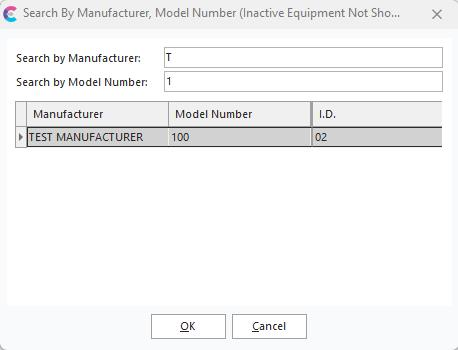
Example - Multi-Field Search Dialog
The functionality for these dialogs is identical to the single-field search-bys discussed above (including all the related User/Location Settings). The only exception is that you are searching on 2 fields at once. Any text entered into either edit box is used when executing the search. So in the above example 'T' is used to filter the 'Manufacturer' field and '1' is used to filter the 'Model Number' field. In all 4 search-by dialogs that use multi-fields the 'second' field is always a detail list for the 'first' field. Meaning (in the above example) that 'Model Numbers' are always specific to 'Manufacturers' in terms of drop-down lists - so it is appropriate to search on these fields together. |