Advanced Procedure/Document Search
The Advanced Procedure/Document Search dialog is used in several places in IndySoft to allow for quick selection of procedures or procedures - most notably when selecting procedures for schedule types (see Scheduling) or when associating documents with equipment (see Notes/Docs). The functionality of the dialog is the same whether you are searching for procedures or documents - but the lists are different. Procedures come from the Add/Edit..Documentation...Procedures wizard and documents come from the Add/Edit..Documentation...Documents wizard.
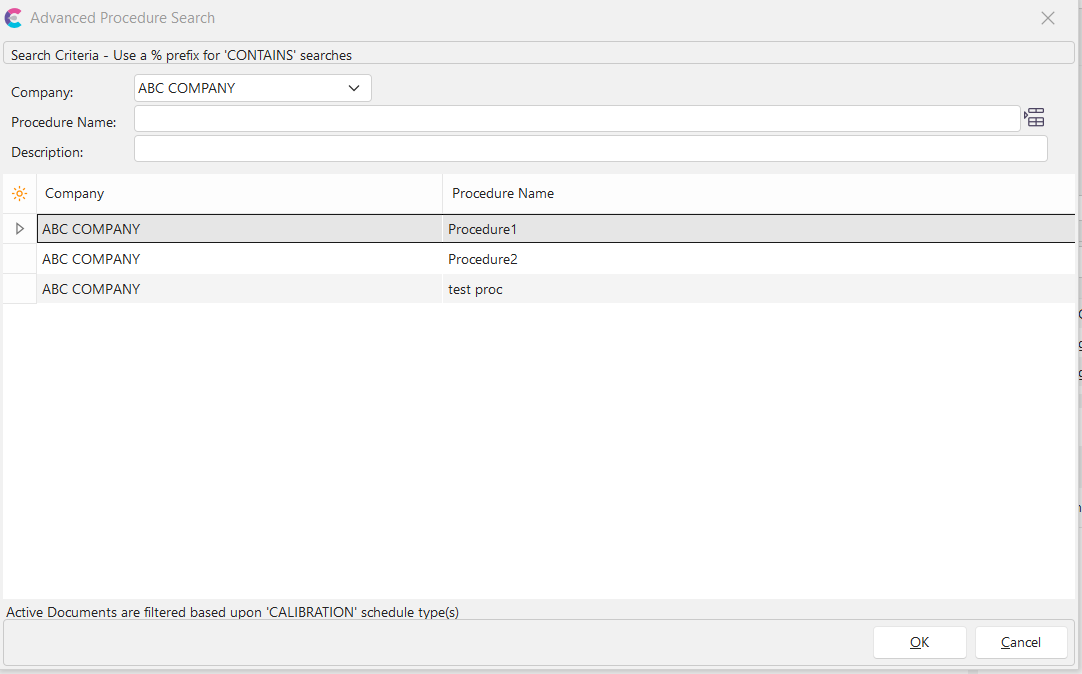
Advanced Procedure Search Dialog
This search-by interface is similar to Equipment Search By Dialogs. All procedures/documents displayed in the results grid are filtered to the Company selected in the top drop-down. Next, you can type search characters for both 'Procedure/Document Name' and 'Description.' These two search filters further constrain the procedures/documents shown in the grid. Keep in mind that the total number of records returned to the grid is limited to the 'Maximum # of Records to Retrieve' setting in User/Location Settings - General.
 List All - Press this button to force all procedures/documents for the selected company to display in the results grid. Note: this operation might take some time, depending on the number of records displayed.
Press OK when the desired procedure/document is selected in the results grid - or double-click on the record in the results grid. |