Adding Documents / Procedures
Adding documents to IndySoft Commercial Lab Management is a simple process that only takes a few minutes. You can add as many documents as you like in any Windows-viewable format. Click the Add/Edit option on the main screen menu to begin the process.
Documents: Documents are used to store documents such as User guides, drawings, etc.
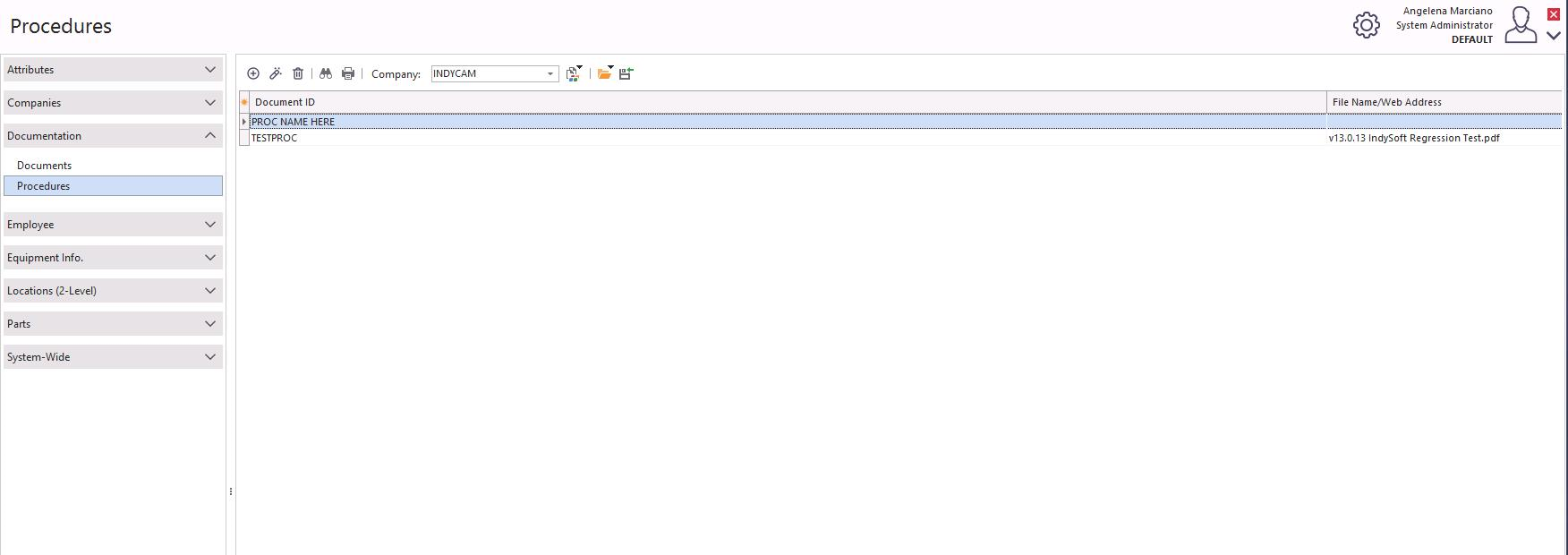
Procedures: Procedures are actual Procedure documents that detail the steps for completing the processes.
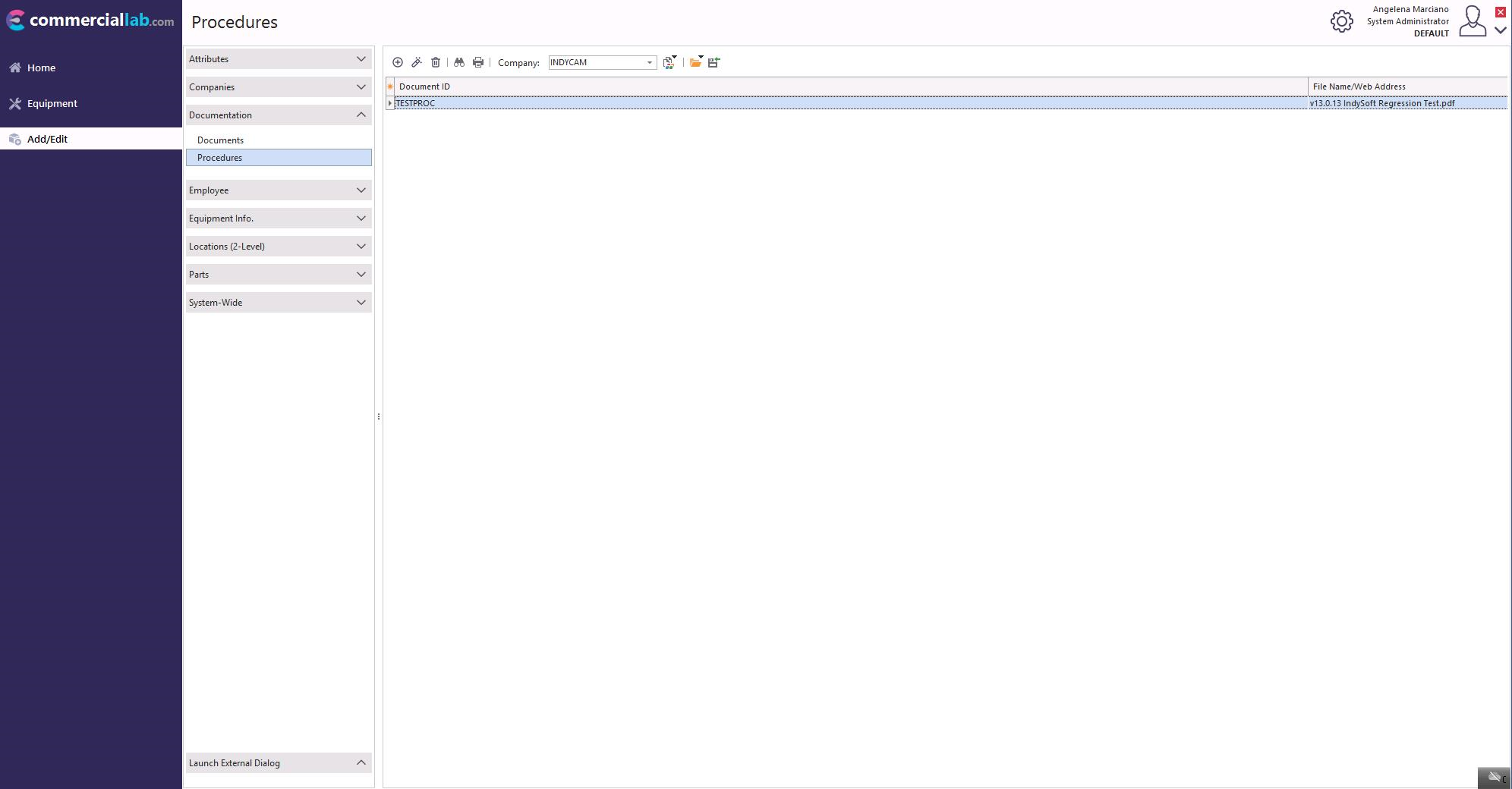
Click the "Add New" icon  .
.
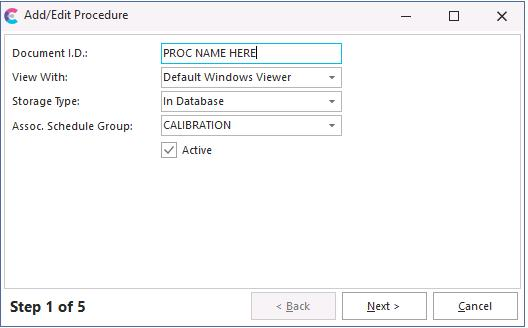
A four-step wizard will launch. Begin by giving the document an ID such as the one shown above.
Then, select the format you wish to view the document in. There are three choices:
- Default Windows Viewer: This will allow the document to be viewed as long as it is in a Windows format. (i.e., .doc, .xls, .ppt, and so on.)
2. Web Browser: This will allow the document to be seen in the user's web browser.
3. No Viewer - Reference Only: This option allows the document to be seen as a reference point. Such as a name or number. The document itself cannot be viewed.
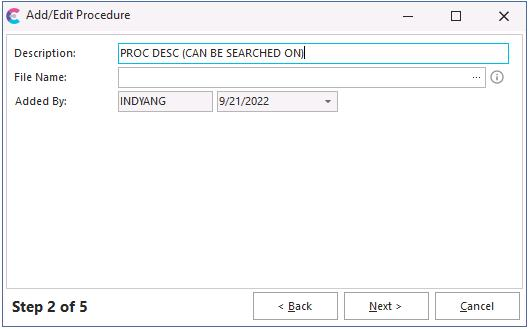
Please give a full document description and browse it using the File Name ellipses button.
Then, select the document type. There are three choices:
- Standard: This will make the document viewable as read-only.
2. Embedded Calibration Doc: This is used when you want to have the document as a test point document. When the document is embedded, usually an Excel document, it can be used as a test point results document in the calibration event.
3. VisualCal Program: [See User Guide for more information]
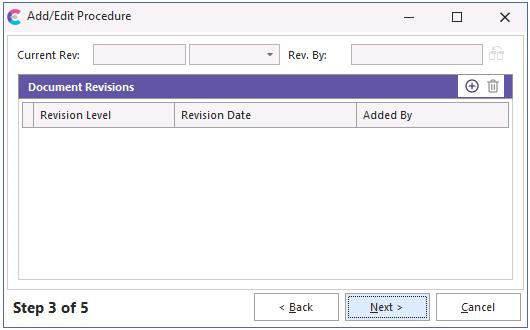
Step 3 allows the specification of a Current revision of the document.
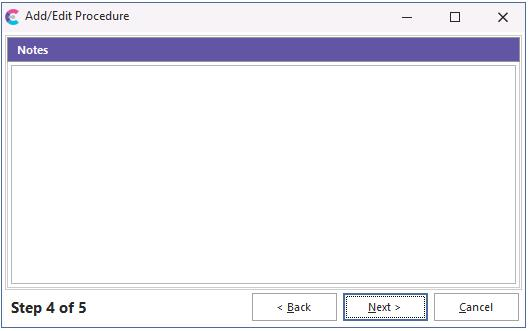
Step 4 allows space for notes about a specific procedure or document.
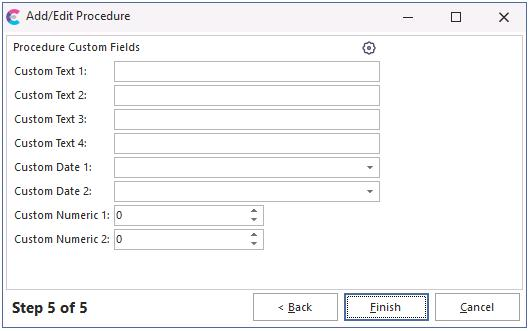
Enter any custom field information and click "Finish."
 |
|