Event Script Trigger Actions - User Actions
Overview
The following are various user interactions with an event that can trigger custom rules. These will tend to be shorter than the other sections, as they are relatively small miscellaneous actions.
Where triggers exist within these processes, they are noted in blue text.
Any flowchart step with an orange background is one where you can invoke AbortAction to abort execution.
Committing Test Point Changes
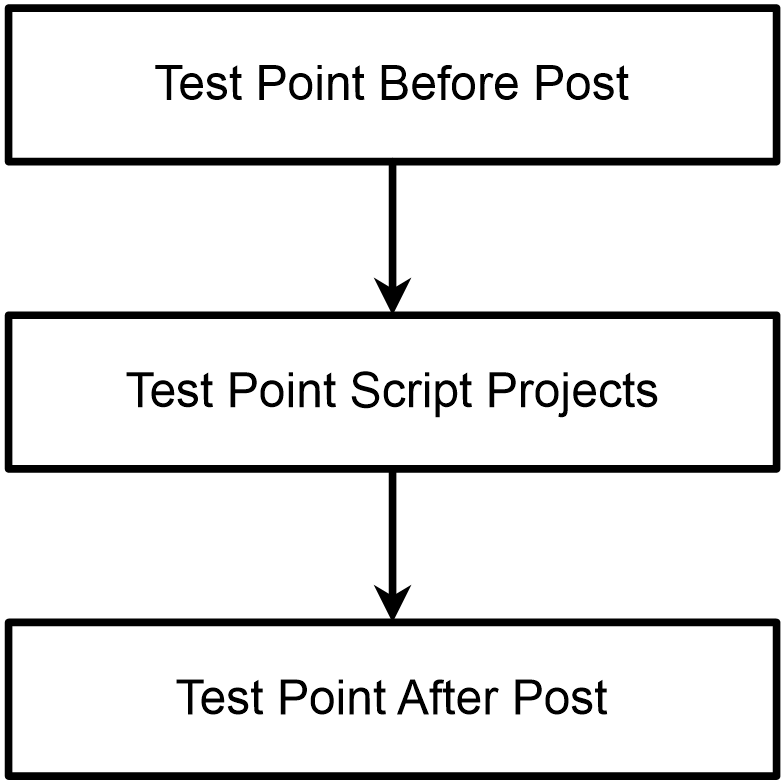
This action occurs before every test point. It can be very powerful when used in conjunction with the Test Point Record functions. You can also use the PassFailOverride variable to customize your own method of Pass/Fail for a calibration. See the Advanced Scripting Examples -> Customized Calibration Pass/Fail Results for more information.
- user moves to another test point or moves to another step in the event
- Test Point Before Post
- if enabled, the Test Point Script Projects fire
- test points are committed to the database
- Test Point After Post
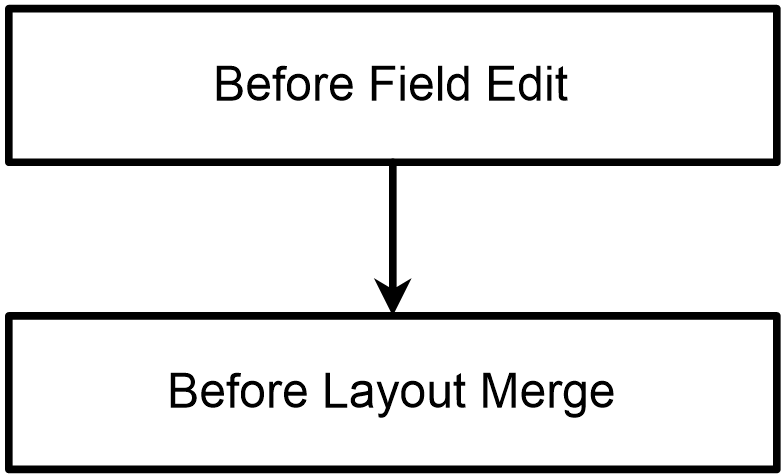
When you click to edit an event field, Before Field Edit will fire. When done, Before Layout Merge will fire to allow for tweaking the layout before it is redisplayed.
Adding a Master
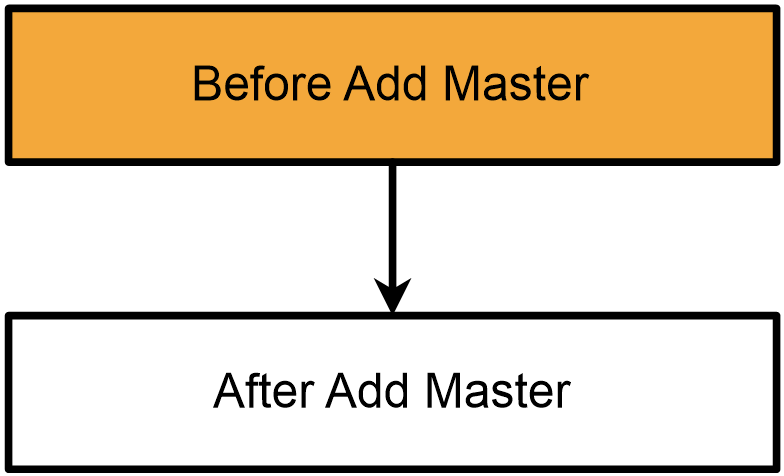
When you add a master, the following will happen:
- Before Add Master
- master selection rules fire
- if master selection rules all passed, the master is added to the event
- After Add Master
Attribute Button Click fires when you click on an attribute of type Button.
On Attribute Tab Change
On Attribute Tab Change fires whenever you change how the Event Attribute grid is being displayed (change gage or attribute to show).
Attribute Edit
·
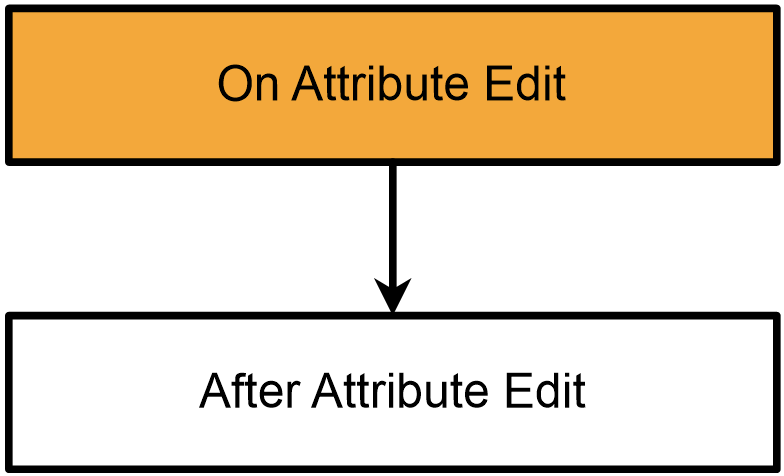
- On Attribute Edit - this trigger action occurs after a user edits an event attribute but before the value is saved to the database and refreshed onscreen. This trigger action is helpful for validating the value input during the edit. Use the LookupAfterEditAttribute* functions to return the values. Call AbortAction during this script to stop the save of the attribute.
- ·After Attribute Edit - this trigger action occurs after a user edits an event attribute and after the value is saved to the database and refreshed onscreen. This trigger action is helpful for updating other event attributes based on the change.
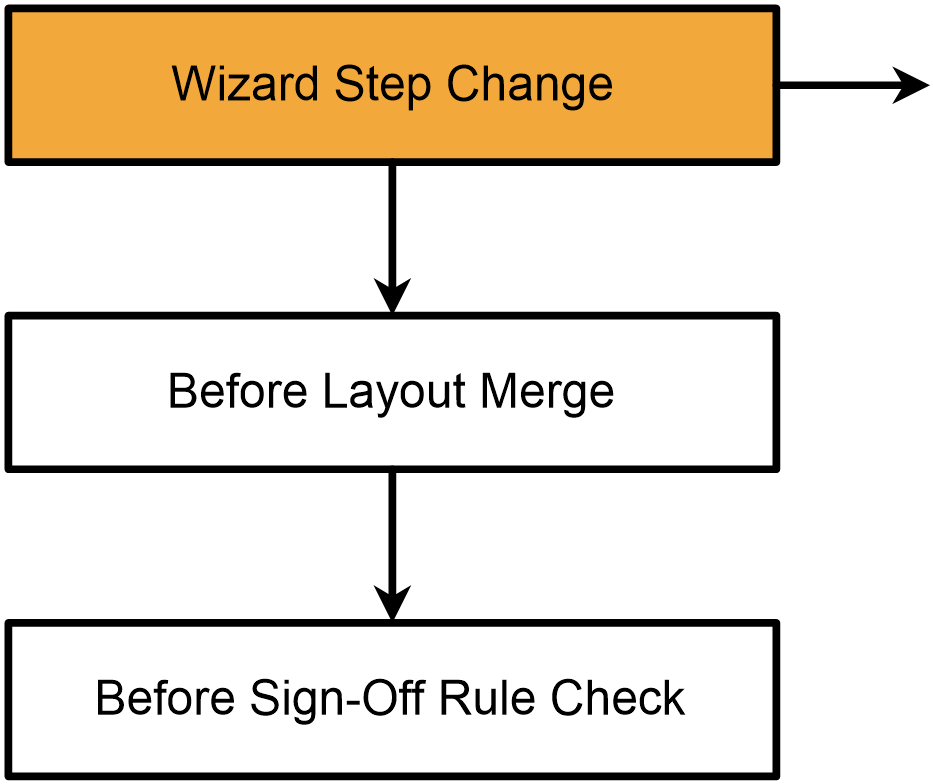
When you change from one event step to another, Wizard Step Change fires. It can also cause Before Layout Merge to fire, and when going to Event Sign-offs, Before Sign-Off Rule Check will fire prior to determining which event sign offs remain. Inside Wizard Step Change, you can use LookupCurrentEventStep to determine what step you're leaving, and LookupNextEventStep to determine which step you're going to.
Adding an Event Sign Off
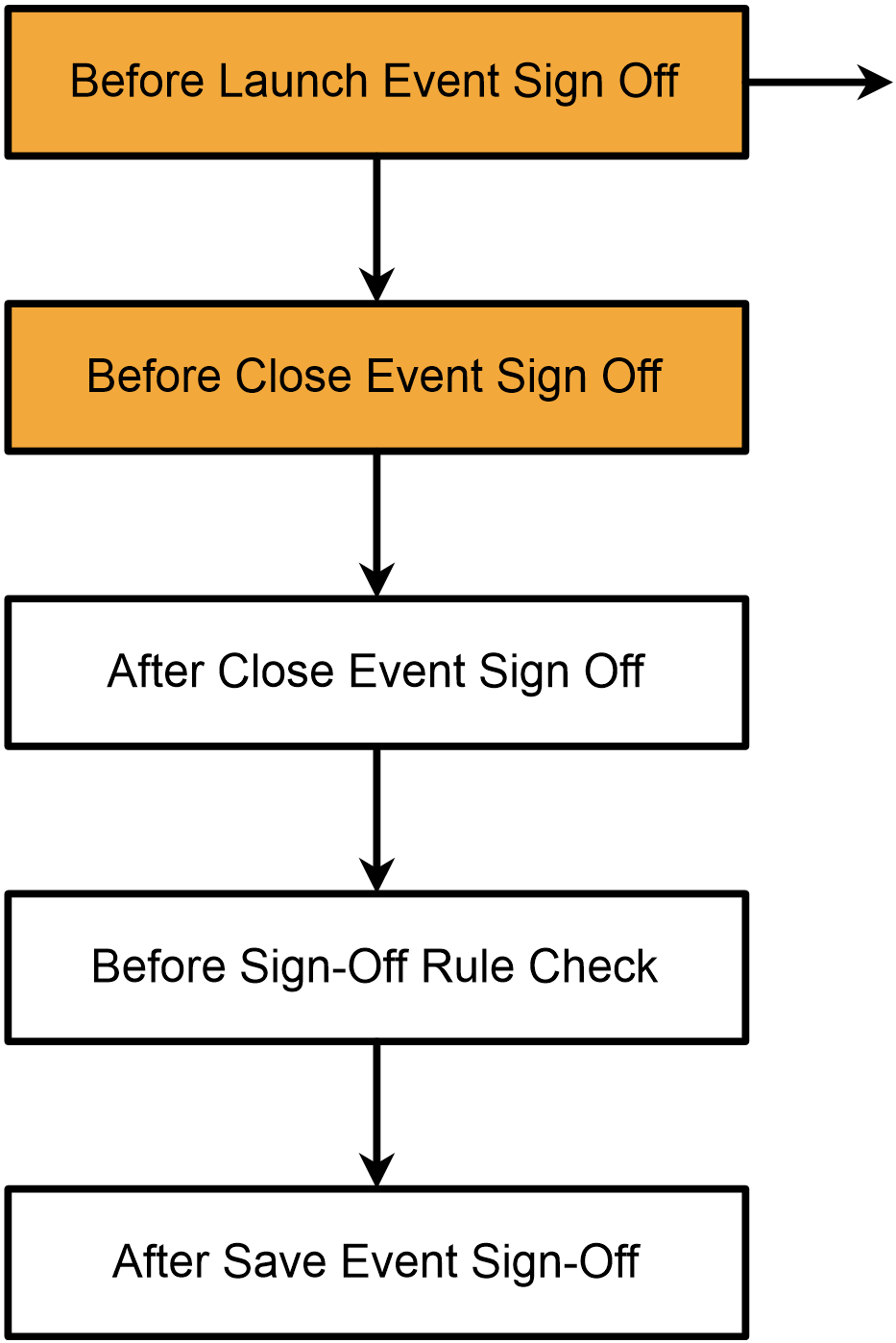
- user clicks to sign off the event
- Before Launch Event Sign Off
- event sign off dialog is displayed
- user clicks OK
- Before Close Event Sign Off
- sign off dialog is checked for valid sign off (if not, a warning message is displayed and the following don't happen)
- sign off dialog closes
- After Close Event Sign Off
- event sign off committed to database
- Before Sign-Off Rule Check
- checks made to see if event sign offs remain
- After Save Event Sign-Off
Note that these rules allow for a number of things to happen, ranging from modifying the event sign off dialog, to changing how an event sign off is validated, to implementing SSO logic.
Running Special Data Collection
The following items are found above the test points grid, and are used to get data from non-standard sources.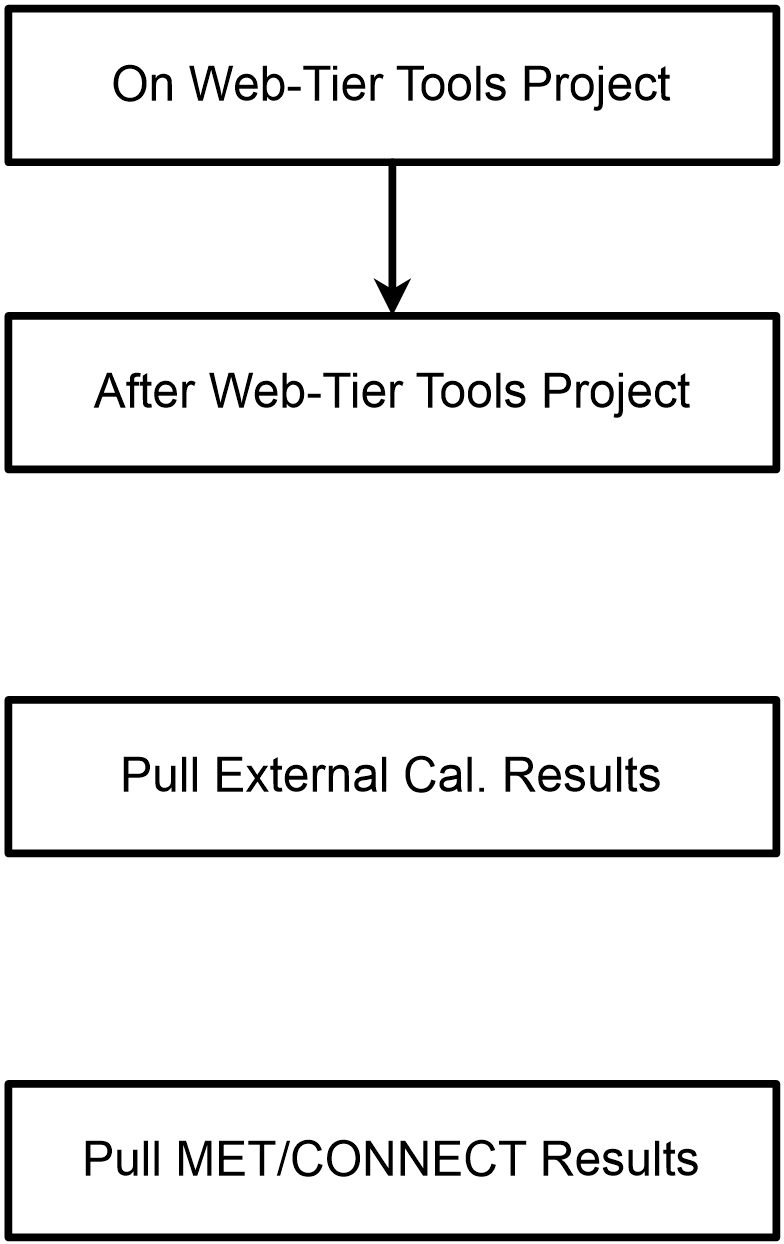
- On Web-Tier Tools Project - This defines which Web-Tier Tools project script to launch via Web-Tier Tools
- After Web-Tier Tools Project - This fires after a Web-Tier Tools project script finishes execution
- Pull External Cal. Results - This defines which script should be fired by the IndySoft client to run a script to get data from other sources
- Pull MET/CONNECT Results - This triggers the Met Cal Import or Met/CONNECT import, depending on system settings
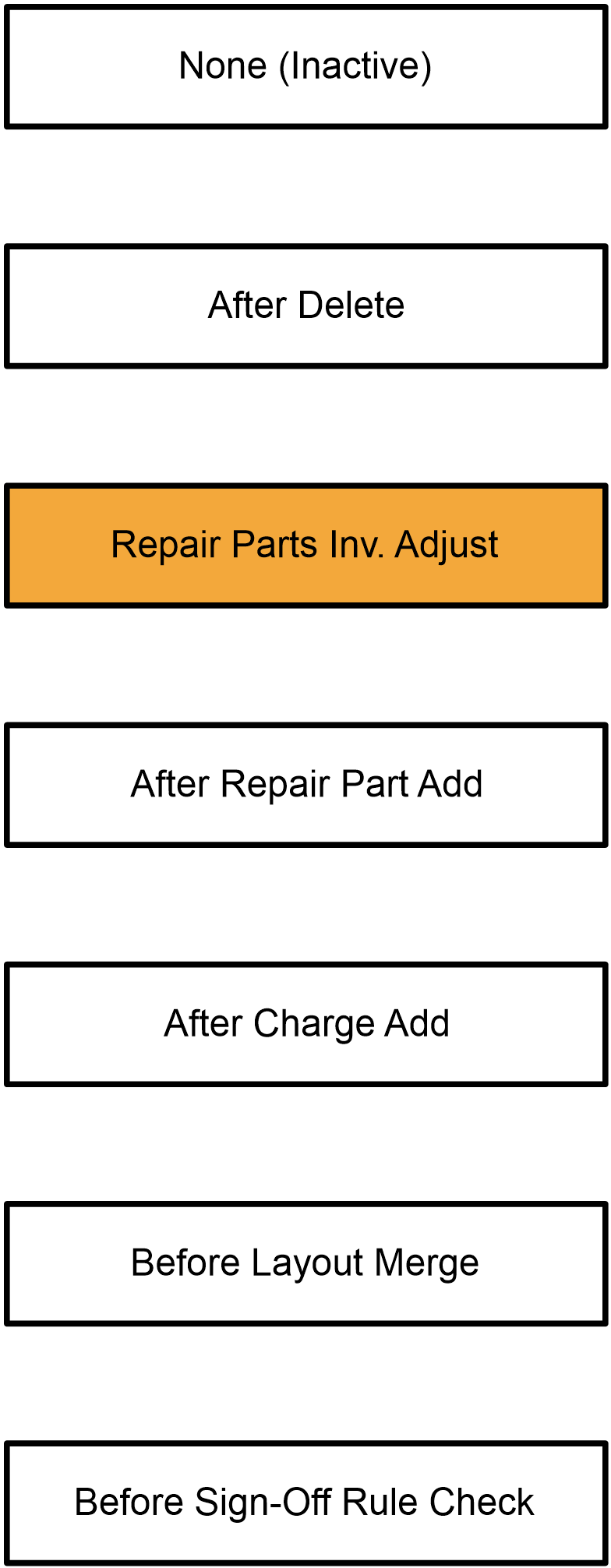
- None (Inactive) - this trigger never fires. It's useful for disabling functionality without having to delete it or wrap the code in an If False.
- After Delete - this trigger fires after you delete a gage from an event.
- Repair Parts Inv. Adjust - (can be aborted) this trigger fires when you close the Edit Repair Parts dialog.
- After Repair Part Add - this trigger fires after you add a new repair part to the event.
- After Charge Add - this trigger fires after you add a new charge to the event.
- Before Sign-Off Rule Check - this trigger action occurs before each Sign Off rule is drawn onscreen in the summary beneath the sign-offs grid or whenever a sign-off rule is being enforced. Typically this trigger action would be used to create an exception for when that sign off rule should be ignored. Any call to AbortAction within this script will cause the current sign-off rule to be skipped.
- Before Layout Merge - this trigger action only occurs if the event fields are drawn using Layout mode, not Field Settings mode. This trigger occurs before the layout is drawn. Typically this trigger action script would make use of the GetLayoutRTF and SetLayoutRTF script functions to manipulate the layout text before display.