Setting Up Node Types and Levels
Taxonomy Manager - Setting Up Node Types and Levels
Before importing or attempting to Create Nodes in the IndySoft Taxonomy Manager, an Administrator must dictate specific characteristics of how each "Node Type" behaves and what it requires. Furthermore, the Admin must dictate the order in which these node types can logically appear in any given taxonomy node lineage. Generally, Level 1 is the most general "Node Type," with each node below becoming more specific in describing the equipment.
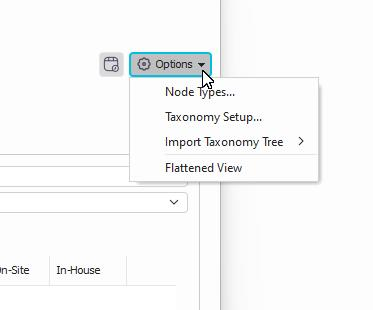
To do this, a System Administrator must open the Taxonomy Manager and click on the "Options" button to select "Node Types..."
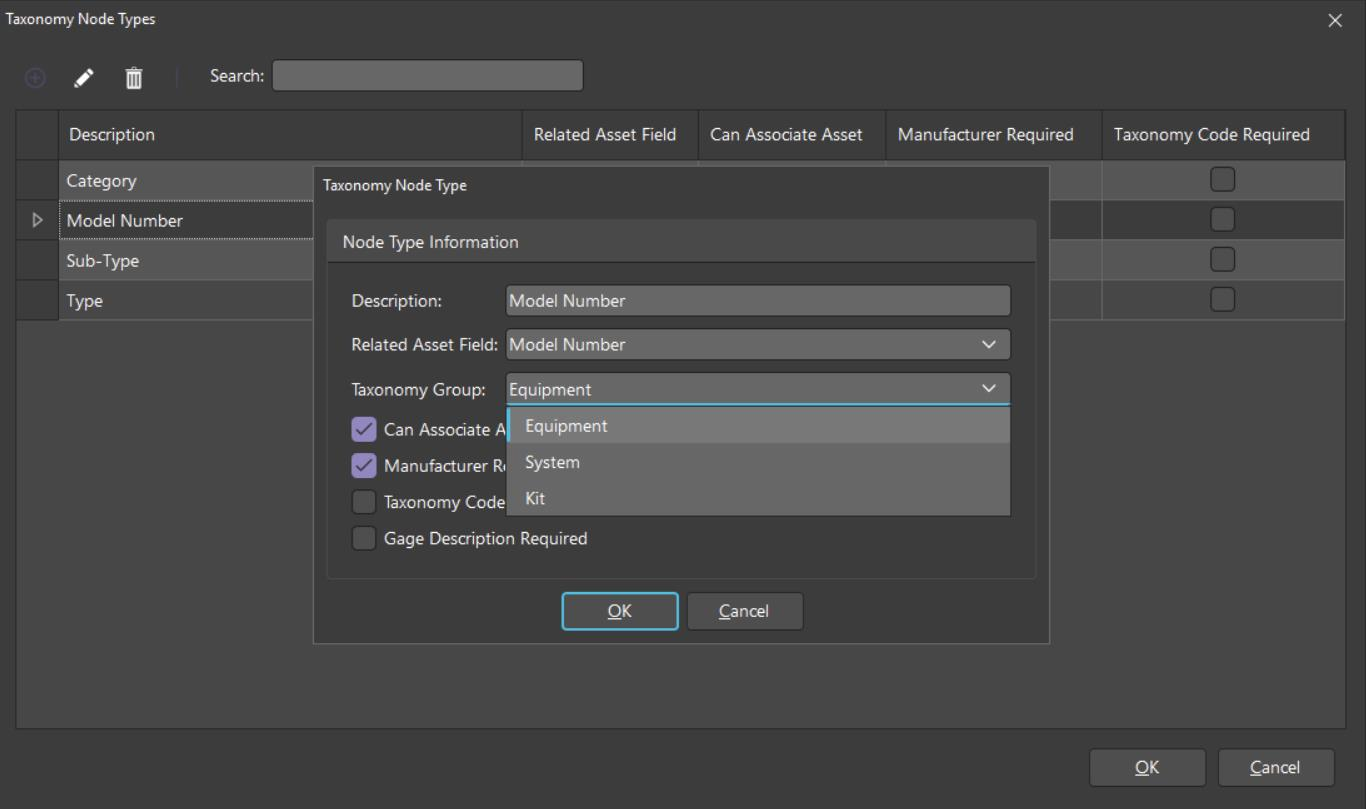
From there, the user can create a list of Node Types and establish characteristics about basic requirements and features of each Node Type. The Order of Node Types is not dictated by this Window.
-
Description is merely the user friendly name of the node type. This is what will appear when identifying the node type in the tree and flattened views and will also in the Taxonomy ID object Identifier in the Equipment View.
-
Related Asset Field can be used if you desire to have the taxonomy tree populate specific asset fields at the equipment or equipment template level. This is not a requirement, but may be especially helpful if wanting to search by that asset field in searches which are not directly based upon the taxonomy tree.
-
Can Associate an Asset informs taxonomy tree searches which Node Types are specific enough to be associated directly with an asset.
-
Manufacturer Required simply requires that the Admin enters a Manufacturer at the Node Level. This would particularly be useful for Model Number or Model Group Node Types which will have a Manufacturer association. Upon equipment association, the manufacturer field will be populated.
-
Taxonomy Code Required requires that a Taxonomy Code be entered upon creation or edit of a node of that Node Type.
-
Gage Description Required requires that the admin enters a Gage Description for any Node of that Type. Upon association with equipment, the equipment description will be updated.
-
Taxonomy Group This classification helps ensure that only the appropriate node types can be used when building the taxonomy tree. Each node type must belong to one of the following Taxonomy Groups:
- Equipment Taxonomy
- System
- Kit
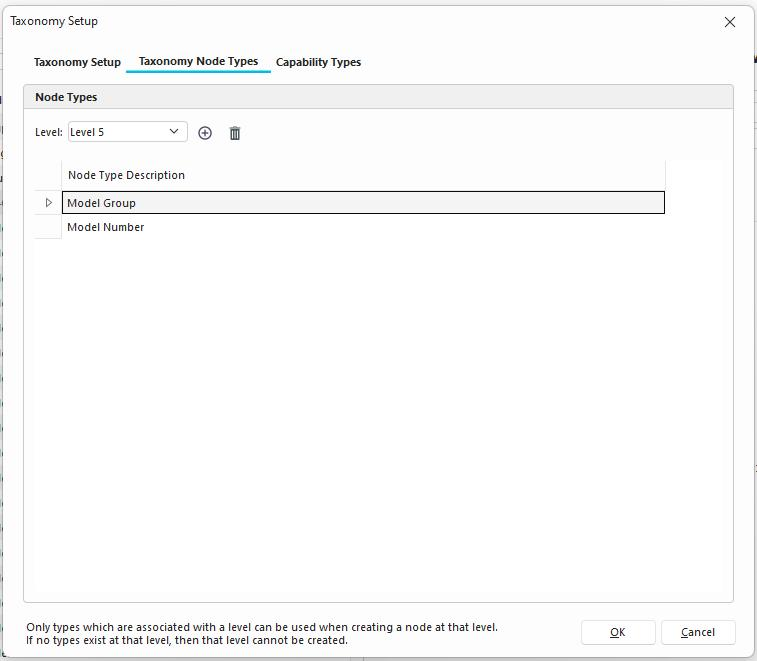
Once the Admin has entered their Node Types, they can now specify the order in which they can be populated. From the Options button in the main Taxonomy Manager interface, an admin can select "Taxonomy Setup." The second tab called Taxonomy Node Types allows the user to specify the created Types with levels. Up to 10 levels can exist in the Taxonomy Manager. The Admin can also decide to associate more than one Node Type per Level. Many organizations will likely have a 1:1 relationship of node types to a level number, but if a more complex relationship is required, then that can be accommodated. (Note that when creating nodes, even though a node type may exist in multiple levels in the Taxonomy Setup, a Type can only exist at one sport in any Taxonomy lineage. If Model Number can be level 5 or 6 and a Node's level 5 is a Model Number, then Level 6 cannot also be a Model Number.)
Once the Node Types and Node Levels are created and associated, entries can be imported or created in the Taxonomy Manager interface. IndySoft recommends importing as there are likely to be thousands of entries.
Other Taxonomy Setup Options
General Options
-
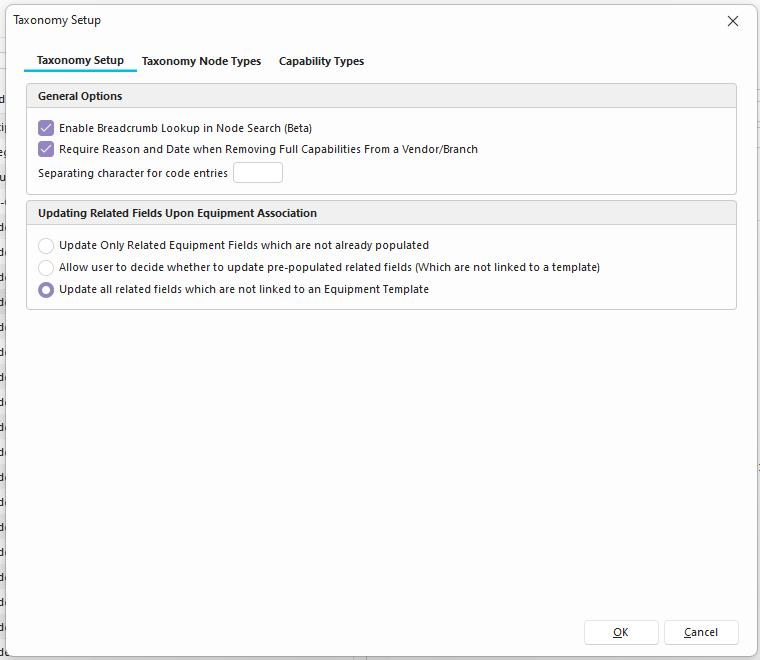
Enable Breadcrumb in Node Search This simply adjusts the search in the Flattened view to look up the entire code breadcrumb instead of the code itself.
-
Require Reason and Date when Removing Full Capabilities from a Vendor/Branch This can be used with Vendor/Branch Capabilities and prompts the user for a reason as to why a certain group of equipment's service level, service site, and Vendor/Branch have lost capability.
-
Separating Character for Code EntriesUpon creation of the alternate taxonomy code breadcrumb, whichever character is specified here will show up in between and code entry in its breadcrumb form.
Updating Related Fields Upon Equipment Association
It is important to note that if any related fields that the Taxonomy Tree may update are linked to an equipment template, those fields will never be updated. In those cases, the template always wins.
-
**Update Only Related Equipment Fields which are not already populated -**This option will only update related fields which are not populated and not linked to an Equipment Template.
-
**Allow user to decide whether to update pre-populated related fields (Which are not linked to a Template) -**This option will allow the user to decide whether to update fields which are already populated and not linked to a template.
-
**Update all related fields which are not linked to an Equipment Template -**This option will update any related taxonomy fields unless linked to an Equipment Template.