Initial Login / Loading Default Configuration
The very first time you run IndySoft (from the initial workstation), you will be prompted with a wizard for importing the initial configuration into the database. There are a wealth of settings that can be modified within IndySoft, but as a new user installing a new database, you need a place to start. IndySoft client installations include one or more *.zip files that are distributed with the client executables - these zip files contain an export of the default configuration for IndySoft. This default configuration(s) can be found in the '\Default Configuration' subdirectory of the IndySoft program directory. The import wizard begins with this step:
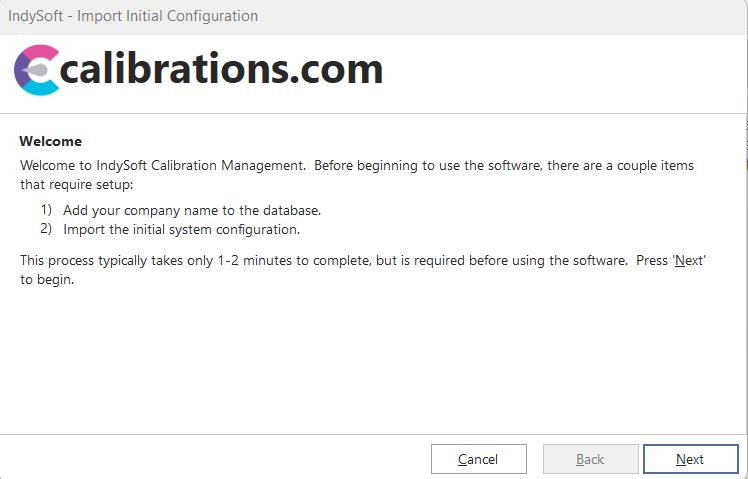
Import Initial Configuration - Welcome Screen
This welcome screen describes the 2 steps in the import process. First, you will add one or more company names to the database; then, you will choose a default configuration and import the settings into the database. Press 'Next' to begin the process. Note: If you select 'Cancel', you will be exited from IndySoft entirely - and upon next login, you will be returned to this wizard. The first step is adding a default company(s):
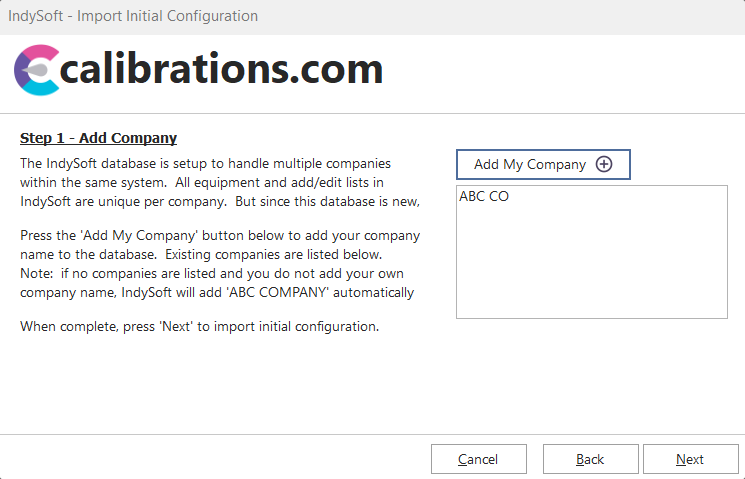
Import Initial Configuration - Step 1
As the onscreen text describes, this first step involves adding your company name to the listing of companies in the database. Sometimes, 'ABC COMPANY' is shown as already existing in the database (as in the above example) - this is just an example company, and it can be removed later through the Add/Edit...Companies...Companies screen. All assets in the IndySoft database belong to a particular company, as well as most drop-down items in the database - so choosing an appropriate company name is an important decision. Press the 'Add My Company +' button to add a new company. You will see the 'Add/Edit Companies' dialog:
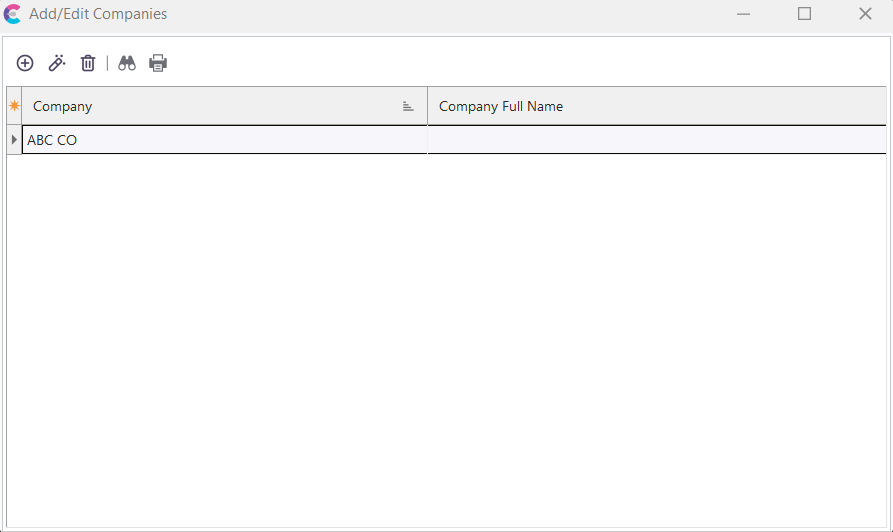
Add/Edit Companies
Buttons / Icons:
 Ordered left to right:
1. 'New Item' to add a new company name
2. 'View/Edit Item' to modify an existing item
3. 'Delete Item(s)' to remove the selected company
4. 'Find Item' to search by characters
5. 'Print Grid' to print the current results
6. and 'Re-Sync Extended Attributes for Related Equipment'
When adding a new company, many details can be input, like address information, email, purchase orders, tax tables, etc. You might want to enter the 'Company' name and 'Full Company Name' for now - you can always return to the Add/Edit...Companies...Companies dialog to add further details:
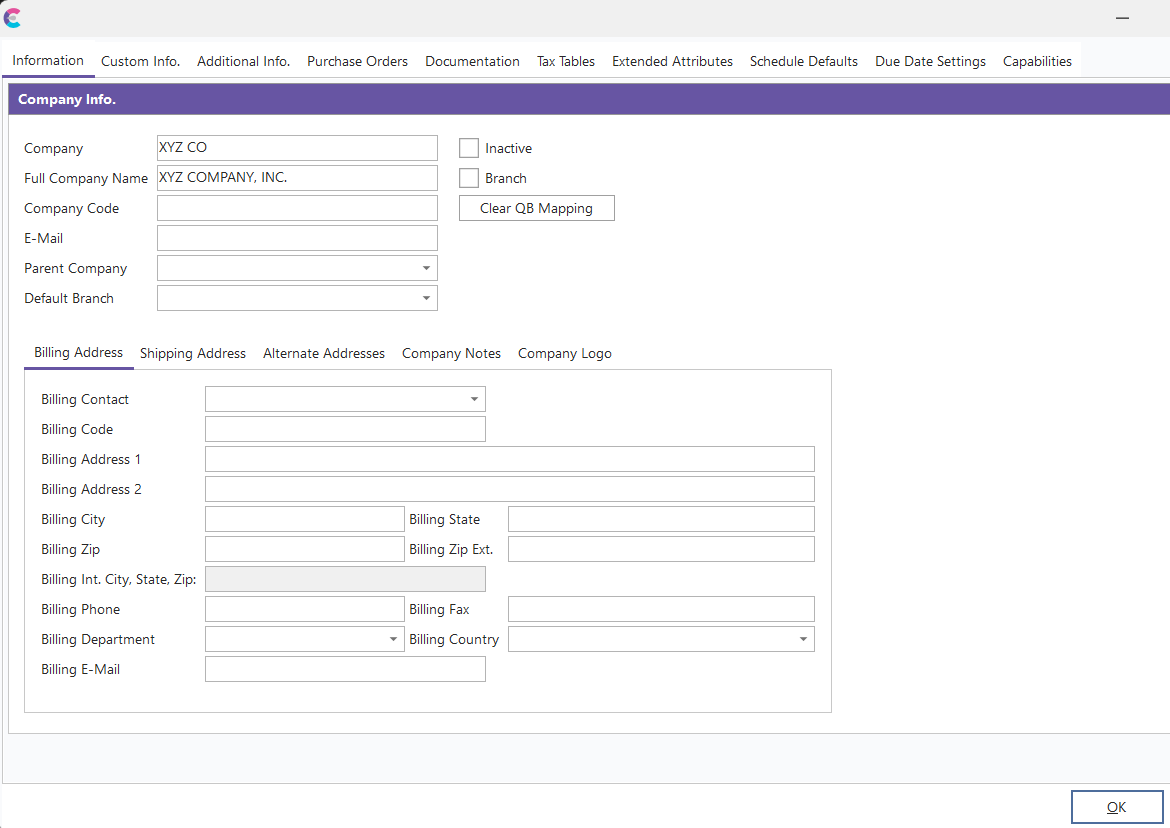
Add/Edit Company - XYZ CO
Once you have completed the edits to company names, close the 'Add/Edit Companies' dialog - you will be returned to 'Step 1' in the wizard, and your modified listing of company names will be shown:
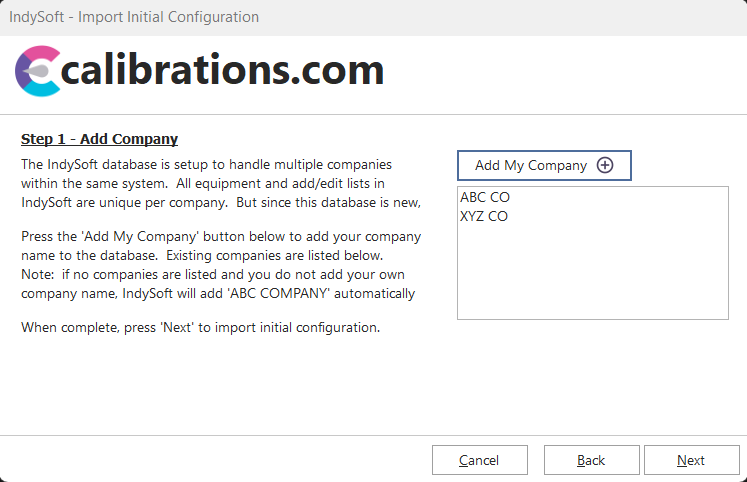
Step 1 - After Adding New Company 'XYZ CO'
Press 'Next' to proceed. Step 2 involves an import of the default configuration. Configuration includes workflow, events, layouts, reports, etc. Each product type of IndySoft contains varying options for default configuration. Depending upon the product type, only one option might be shown - but there will be at least one option:
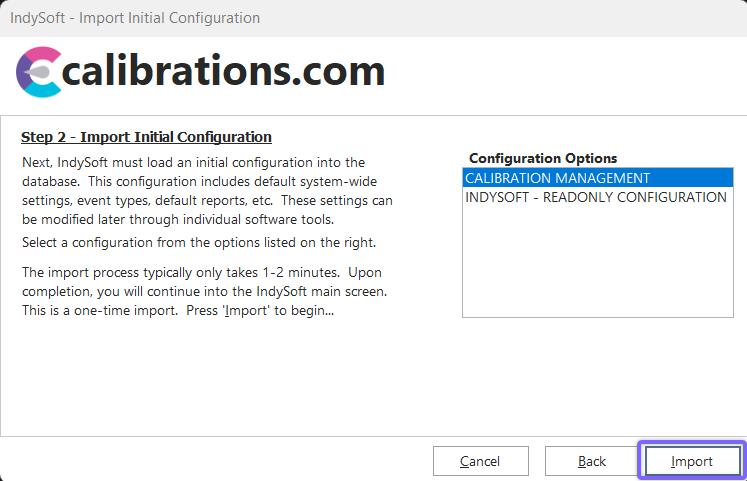
Step 2 - Import Initial Configuration
Select the appropriate configuration from the right and press 'Import' to proceed. Note that you can always use the Export/Import Module to reload configuration. Once the configuration begins to load, you will see a progress bar. Note that some settings are deleted before the configuration is loaded - this is not a concern; since this is a brand new database, we are simply ensuring that the configuration that is loaded is not 'mixed in' with past configuration (this is the same process that is used by the Export/Import Module). The import generally takes 1-2 minutes, depending on the computer, database, and network speed.
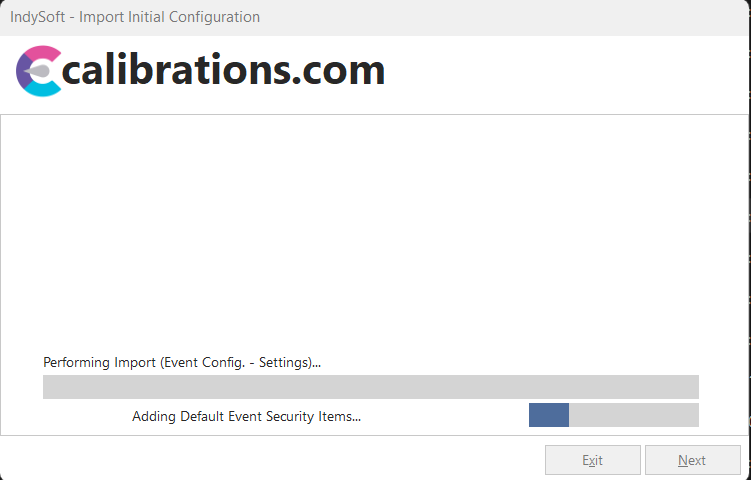
Performing Import - Progress Bar
After the import is complete, the initial login to IndySoft will be completed, and you will be sent to the IndySoft main screen, as shown below:
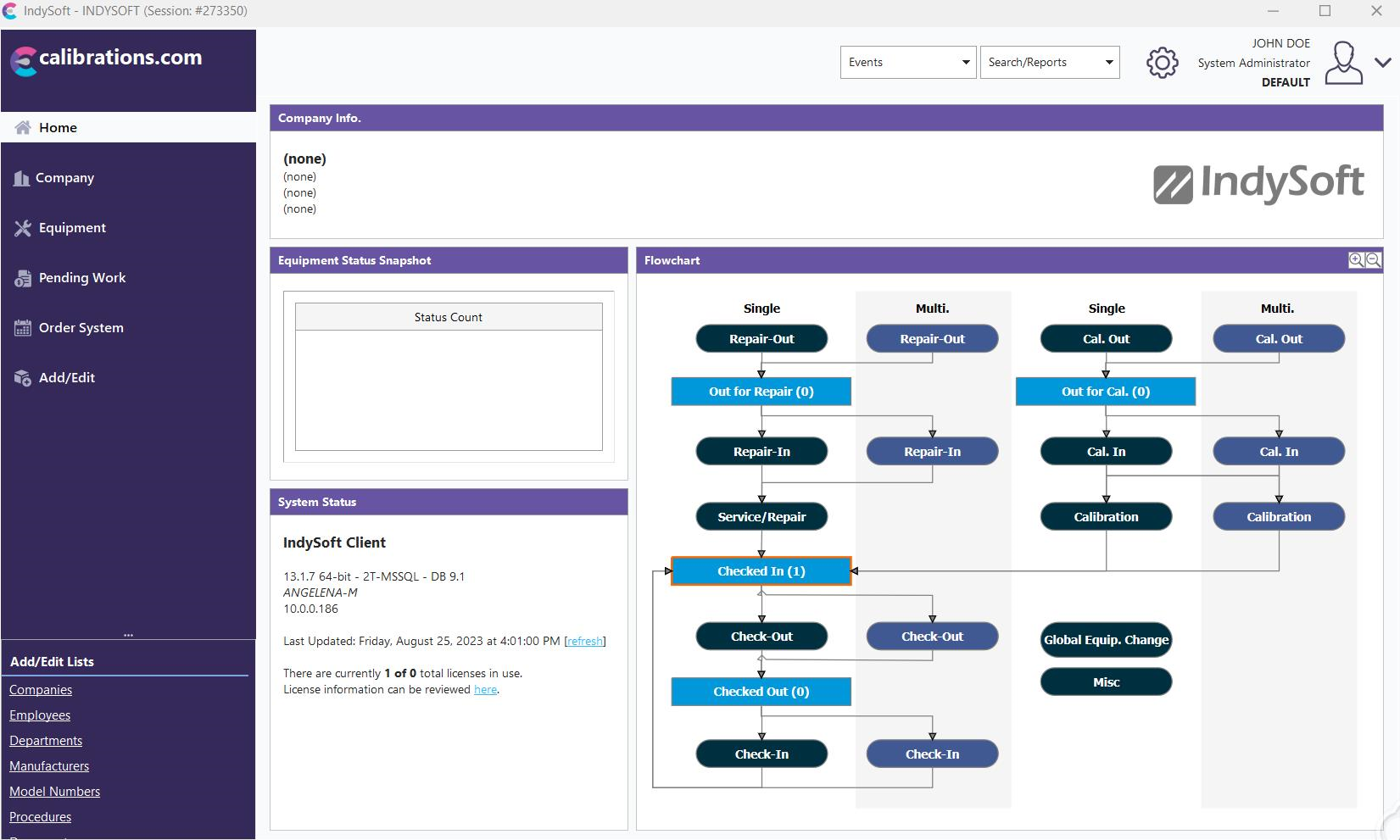
Note: This 'Import Initial Configuration' wizard will occur upon initial login to the Dashboard main screen. But once the wizard runs one time, it will not be necessary again. |