New Charge Discount Method
In version 14, IndySoft has introduced a new system for inline charge discounts.
Getting Started - New Charge Discount Method
Users with proper privileges can enable the New Charge Discount Method from the Order System Preferences dialog.
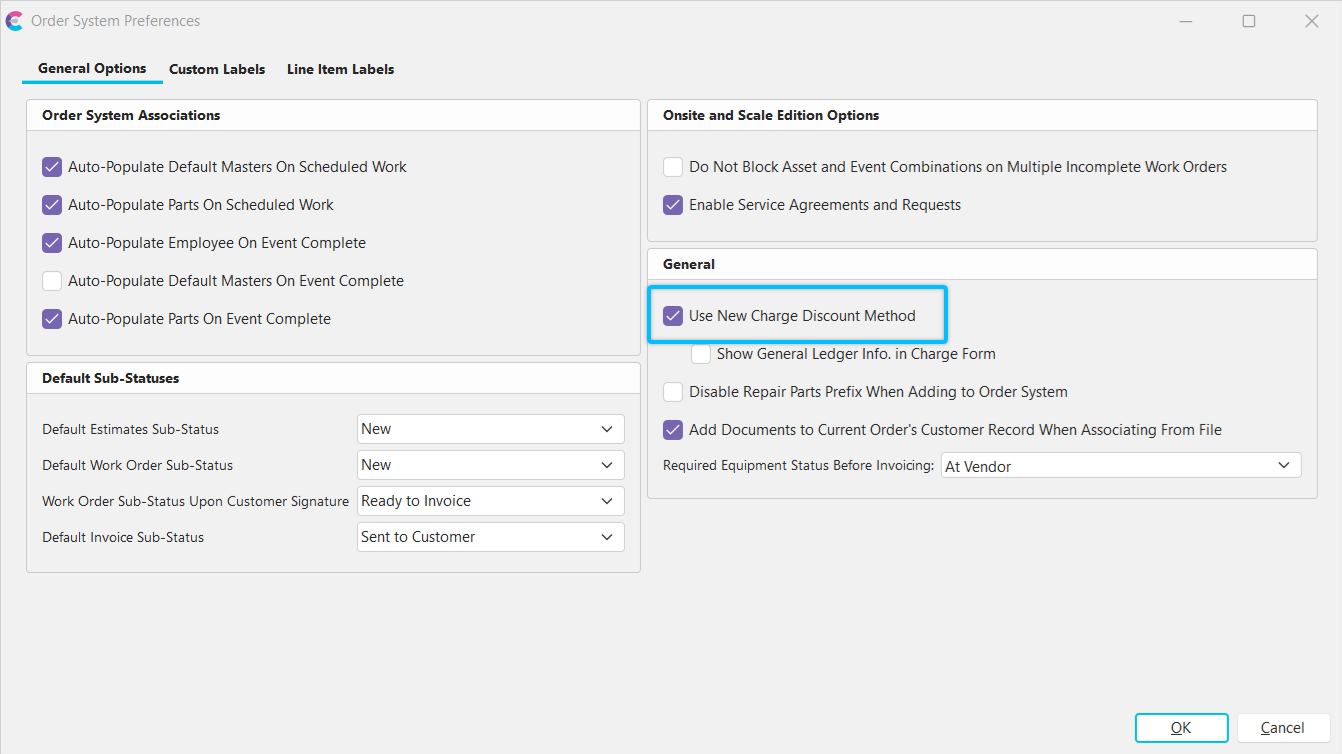
Order System Prefs - New Charge Discount Method
Note: Live environments would be advised not to turn this feature on without properly testing the feature set in a development environment first. New customers could enable this feature for their training, testing, and implementation.
Enabling this feature will populate charges and their discounts very differently than in prior versions. These may overwrite previous charge discount setups. In particular, company discounts and systems that use the older method of the multi-line discount.
Add/Edit Charges Dialog
Once enabled, charges which are added to Orders, Events, Templates, Equipment, and Charge Templates will have built-in options for in-line discounting.
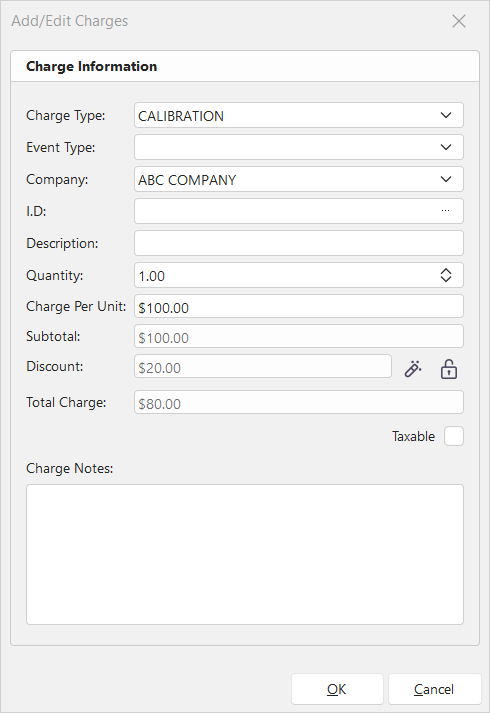
Add/Edit Charges Dialog - New Discount Method
In this methodology, users with the proper permissions will have several discount options.
- The ability to add/edit discounts directly within this dialog using the 'edit' icon button
- The ability to lock/unlock the associated discounts
 Edit Discount - Use this button to add/edit a discount to the charge. You have the option to choose the discount type and amount in this dialog:

- Discount Type: type of discount to be applied
- Percentage
- Flat Discount ($)
- No Discount
- Discount Amount: amount to apply in discount
- If percentage, then the amount entered will have a unit of % (ex: 20% discount)
- If flat discount, then discount amount will have a unit of $ (ex: $20 discount)
 Lock Discount- Locks a charge discount from being edited. Also, locks the charge so that no other discounts will be applied.
These permissions are controlled by the security item settings set in Profile Manager. There is also a global variable to hide or show Charge GL# and Cost GL# in the Add/Edit Charge dialog.
Interface Information/Security Items
Users with proper permissions can apply a discount directly to a charge as a Percentage or Flat Discount. Users can also elect to apply no discount. This simple method of applying a discount allows a common function to calculate the total charge after discount. All charges now store exact discount fields directly.
Discounts can also be locked by users with qualifying security permissions. Those locks can also similarly be overridden.
The security items provide a 2-level hierarchy, which allows some users to add discounts when unlocked and other users to be able to lock and override discounts.
Importantly, only one discount can be applied per charge.
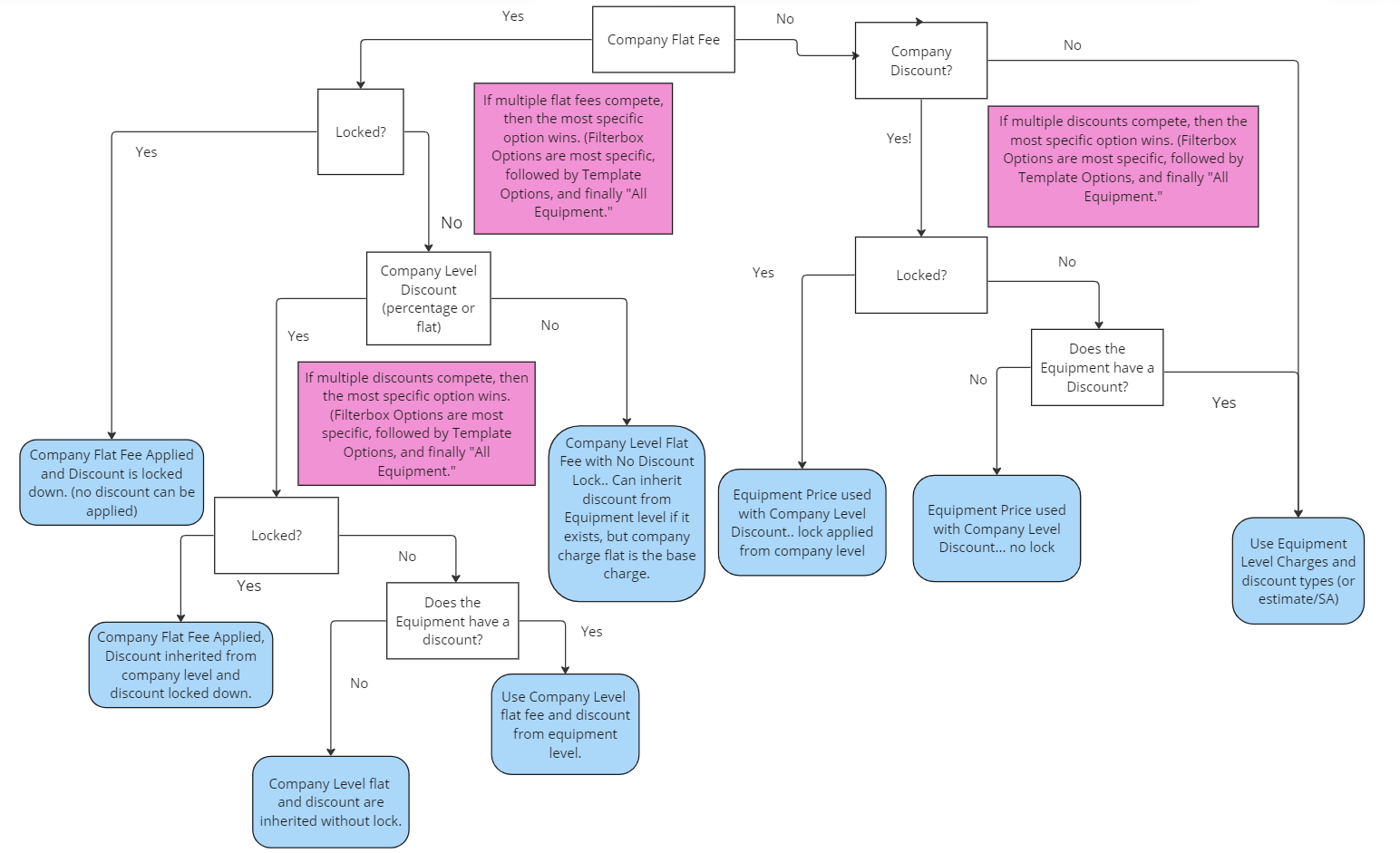
New Inline Discount Flow
This new inline discount structure follows a workflow that naturally flows down from Company-level Discounts to Equipment-level Discounts, which then make their way to qualifying events/the order system.
When creating a company-level discount that originates in the Set Charges utility (SetCharges.exe), those discounts are locked by default. Discounts or Flat Charges that originate from the company level which are locked will take precedence over any lock that may exist at the equipment level (equipment level could technically be equipment specific, from an equipment template, or directly from a charge template). If a company-level discount is not locked, then any charge discount that may exist at the equipment level will take precedence.
Please refer to the flowchart below that describes what happens in each scenario of that particular flow.