Maximizing Speed
'Why are some functions slower than others?'
There are a few activities that can produce this comment from your users. For many of them, there are easy ways to improve their performance. Finding the right solution will depend on how your users use IndySoft.
Search By's
When performing Search By's, IndySoft defaults to presenting every piece of equipment and updating the list as the user types. This can offer an enjoyable experience for the user, as long as your company doesn't have 200,000 pieces of equipment to display.
The Problem
What is happening is this: the user opens the Search By and immediately downloads all 200,000 records. This is a lot of information! Then the user presses a key. The Search By updates the list, perhaps trimming down to 20,000 records, which are downloaded again. This is still a lot of information! The situation gets better with each keystroke, but the network uses a considerable amount of bandwidth, which isn't the best situation.
The Solutions
 ../Storage/indysoft-help-publication/100273316.png
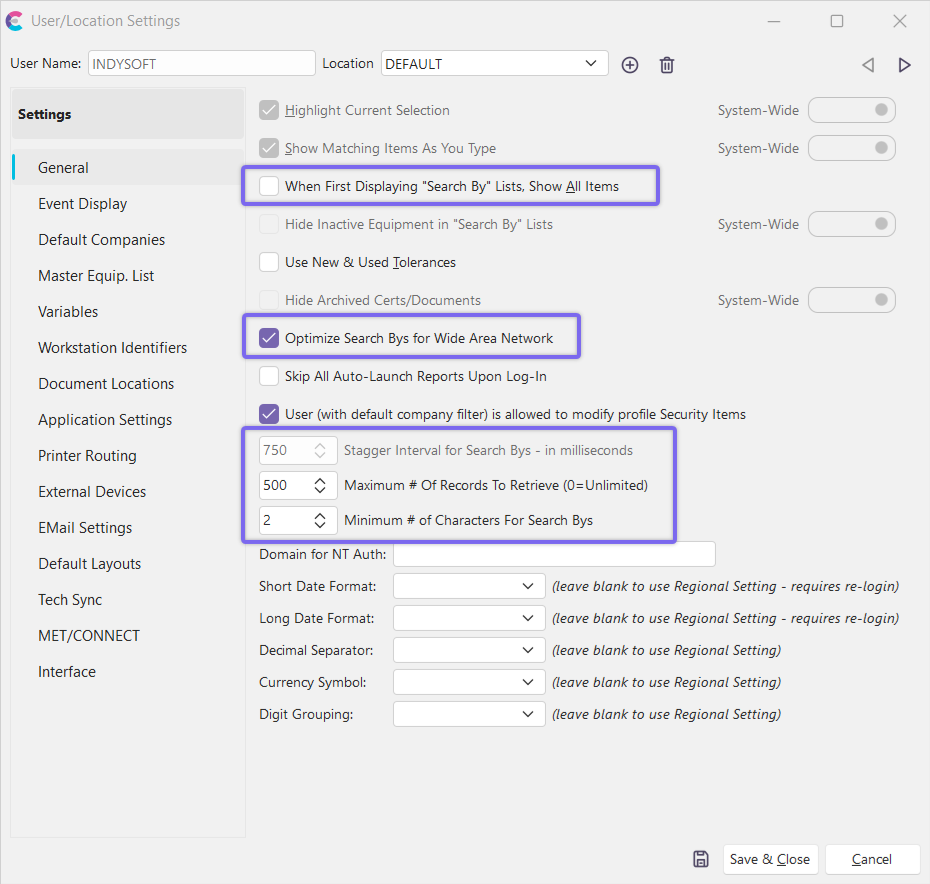
User/Location Settings - General
The User/Location Settings - General window offers several solutions to help you out.
1. Uncheck When First Displaying 'Search By' Lists, Show All Items. There is no reason to pull those initial 200,000 records. Please don't do it!
2. Set Stagger Interval for Search Bys - in milliseconds to something like 750. This makes IndySoft wait until you pause typing before it gets the information rather than retrieving it for every keystroke.
3. Set the Maximum # Of Equip. To Retrieve to something reasonable. Usually, more than 500 or 1000 results are not beneficial.
4. Set the Minimum # of Characters For Search Bys to 2 or 3 characters. This is especially useful if most equipment IDs start with the same two letters.
5. Check Optimize Search Bys for Wide Area Network.
History Tab
A similar problem can occur when looking at the History tab of a piece of equipment that has been in service for several years. Perhaps you are switching to a piece of equipment that gets Checked In and Out several times a day. Thousands of events may be recorded in the History tab, and they all get loaded when you have that tab open.
By using the Filtered to not show:  button, you can restrict the number and type of events you see, which reduces the time to download them from the database.
Logging In for the First Time
The first time you run IndySoft on a particular computer, it downloads and caches a lot of information for future use. As a result, the first time you log into IndySoft on a computer, it will take a while to start. This only happens once, so the startup time will be far less after that.
Accessing the Network From a Remote Location
There may be times when your users need to use IndySoft from a remote location, perhaps across the world. When you do this, you will probably have a much slower connection than you are used to. To improve performance, you can use a 3-Tier configuration or a tool such as Citrix to run IndySoft remotely. Unfortunately, they may not be able to give you the same level of responsiveness you are used to, but they can help. |