Filterboxes
IndySoft makes frequent use of a 'filterbox' interface that allows users to quickly create queries against equipment or other tables/groups in the database. There are several types of common filterboxes:
·Equipment filterbox: seen in EquipmentFinder, custom search-by's, selection rules in Workflow Configuration, and many other locations
·Event filterbox: seen in EventFinder, History Charts, etc.
·Login scenario filterbox: seen in Display Rules for Workflow Configuration
·Parts/Operations filterbox: Tool Management Only - seen in Parts/Operations searches
·Work Order filterbox: used in Order System...Work Orders
·Estimates filterbox: used in Order System...Estimates
·Invoices filterbox: used in Order System...Invoices
·Out Inventory filterbox: Tool Management Only - seen in selection rules in Workflow Configuration, within the event system when selecting assets
·Company filterbox: used in Profile Manager...Company Filters
All of the above filterboxes have a similar interface. Each line of the filterbox represents distinct search criteria. Search criteria generally have 3-4 parts:
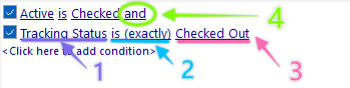
1. Search field
2. Search comparison
3. Search value(s) - this could involve one or more parameters
4. And/Or - this parameter is only shown if another parameter is below the current one. This determines if the two conditions (the selected condition and the one below it) should be joined through an 'and' or an 'or.'
Click on each parameter to see a list of available options (if appropriate). When clicking on the search field for equipment-based searches (as an example), you will see a listing of approx. 150 different fields. Note that the captions shown for the fields will vary based on prior search criteria selected earlier in the filterbox. For instance, say you have a custom label for the 'I.D.' field set for the 'ABC COMPANY' - when that company is onscreen, the 'I.D' field is called 'Unique #'. When entering a filterbox, if the 'Company' field is not set as a criterion anywhere in the filterbox, you will see 'I.D.' listed as a field option. If you create a search criterion that says 'Company is (exactly) ABC COMPANY,' you will see 'Unique #' listed in the available fields, not 'I.D.' upon adding new search criteria. The filterbox is 'learning' the group of equipment you are interested in and speaking that language the best it can. After all, if you are a user that only works within 'ABC COMPANY' assets (you might be blocked through the security system from seeing other assets), then you would never know to search on an 'I.D.' field.
You will notice modified field names for:
| Company detail fields | After the selection of a Company field value, these include custom labels (like 'I.D.,' 'Serial Number') and Add/Edit...Companies...Company's custom fields.
| Attribute detail fields | after the selection of an Attribute field valueTracking Status detail fields | after the selection of a Tracking Status field value. These include the 'Current' and 'Transit' fields.Event field names | after the selection of the Event Types (only applies to Event filterboxes) |
When selecting the 'search comparison' (the second parameter), you will note that there are varying options depending on the field type. Text-based fields give one set of options; numeric fields give another set of options; date fields give another set of options, etc. Date fields give many options that include 'relative dating' - so the comparison can be set up relative to the date when the filter is executed. For instance:
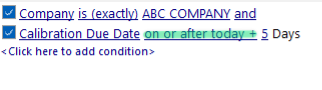
Example - Date Field Search Criteria
The Search Value parameter will occasionally have a drop-down, if appropriate. This drop-down functionality will vary depending on the field type. Date-type fields will have a date selector; numeric fields will have a calculator, etc. Text-based fields that have a corresponding Add/Edit list will show the appropriate list. The items shown in this list will obey any reasonable constraints from prior filterbox criteria. For instance, if the filterbox is setup as:

Example - Filterbox Drop-Down Criteria
Then when selecting the search value drop-down for 'Type,' all the items will be contained to 'ABC COMPANY' - since Type lists are specific to each company and a company was already selected in the filterbox.
MSSQL New Feature: Search within Notes Field
 Note: This feature is specific to MSSQL databases for IndySoft version 12.1.0 and on.
In Version 12.1, a new feature was introduced for MSSQL databases, allowing us to search within 'Notes' fields across IndySoft. In past versions, our only search comparison options were 'is empty' and 'is not empty.' We have now introduced 'contains' as well. This enables us to search on notes by inputting a specific text filter. The syntax for such a search filter is as follows:
1. Search field = Notes
2.Search comparison = 'contains'
3. Search value = Input text that you are searching for
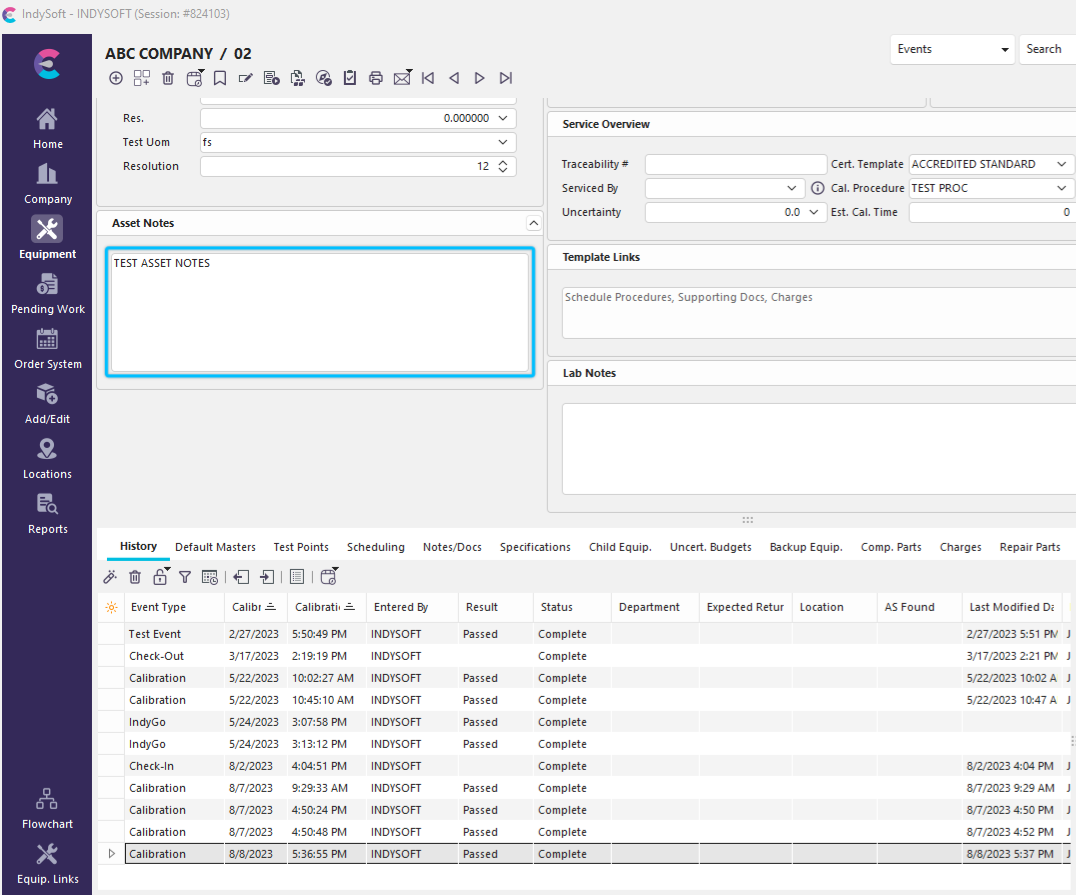
For example, you want to search within your notes field at the equipment level. I have added the text 'test comment here' to my asset notes in the screenshot below.
 ../Storage/indysoft-help-publication/hm_clip3403.png
Example: Equipment View - Asset Notes
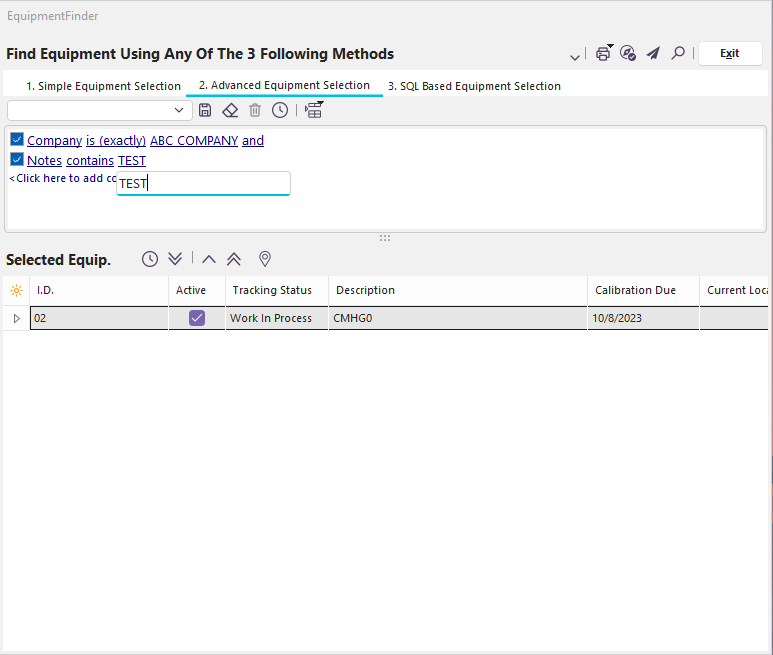
Now, when we go to perform a search, we will be able to search for any notes that contain the test we specify. Click on the search value, which will start default as <?>, to insert your text filter. In this example, I will search for notes containing the text 'TEST.'
 ../Storage/indysoft-help-publication/hm_clip3404.png
Example: Search Text Contained in Notes
You can see that one record of equipment was returned in the grid for gage notes containing the text 'TEST.'
Search Value Aliases
When text is manually entered into the filterbox, IndySoft allows for several aliases that will be substituted for data appropriate to the current log-in when the filterbox is executed. For instance, you could set up an equipment filter to find all equipment owned by the current employee (the employee name that corresponds to the user name currently logged in) by entering:
Owner is (exactly - not in list) !EMP_ID!
This way, one filterbox can be saved for reuse by all users, but the result set will be different for each unique log-in. A listing of available filterbox aliases is given below:
!USER_NAME! - The user currently logged in - as setup in Profile Manager
!USER_FULL_NAME! - The full name of the user currently logged in - as setup in Profile Manager
!PROFILE! - The security profile of the user currently logged in - as setup in Profile Manager
!COMPANY! - The Company currently selected on the IndySoft main screen.
!WORKSTATION_NAME! - the Workstation Name, as set up in User/Location Settings...Location Settings
!WORKSTATION_CRIB_NUMBER! - the workstation's crib number, as set up in User/Location Settings...Location Settings
!WORKSTATION_DEPARTMENT! - the workstation's department name, as set up in User/Location Settings...Location Settings
!WORKSTATION_LOCATION! - the workstation's location code, as set up in User/Location Settings...Location Settings
!EMP_ID! - the employee name associated with the user currently logged into the system. (Employee names are associated with user names through the Profile Manager).
!EMP_DEPARTMENT! - the Department (Add/Edit Employees) of the employee associated with the user currently logged into the system.
!EMP_LOCATION! - the Location (Add/Edit Employees) of the employee associated with the user currently logged into the system.
!EMP_TYPE! - the Employee Type (Add/Edit Employees) of the employee associated with the user currently logged into the system.
!EMP_SUPERVISOR! - the Supervisor (Add/Edit Employees) of the employee associated with the user currently logged into the system.
!EMP_GROUP! - the Group (Add/Edit Employees) of the employee associated with the user currently logged into the system.
!EMP_SHIFT! - the Shift (Add/Edit Employees) of the employee associated with the user currently logged into the system.
!EMP_INITIALS! - the Initials (Add/Edit Employees) of the employee associated with the user currently logged into the system.
!HOMEVIEWCOMPANY! - returns the current HOMEVIEWCOMPANY variable as potentially set from within the current Home View. This is an optional setting that could be specified in a Home View through this syntax: !HOMEVIEWCOMPANY=ABC COMPANY! (where in this example, 'ABC COMPANY' is the current company).
!HOMEVIEWFULL_NAME! - returns the associated full name for the current HOMEVIEWCOMPANY variable as potentially set from within the current Home View. This is an optional setting that could be specified in a Home View through this syntax: !HOMEVIEWCOMPANY=ABC COMPANY! (where in this example, 'ABC COMPANY' is the current company).
Saving/Recalling Past Searches
Past searches can be saved and recalled from the trim panel above each filterbox:
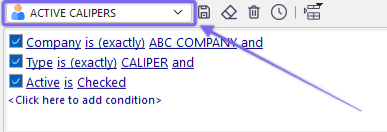
Recall Past Searches
 | Save Equipment Selection | Use this to save the current filter for re-use. You will see a dialog where you select the filter name and choose whether it should be 'User,' 'Global,' or 'Company' specific.:

User-based filters are only visible to your username. All users see global filters. Company filters are only visible for the current company.
When editing a saved search filter, you must type in the exact same name to overwrite the old file.
|  | Clear Equipment Selection | This button will clear the filterbox so you can start over with a new filter.
 | Delete Equipment Selection | This button will delete the equipment selection selected in the drop-down (if any). This permanently removes the saved search from the database.
 | Test Equipment Search Filter | This button tests the equipment filter - a count is returned of matching items.
 | Add Ext. Attribute By Name | This button is only shown for equipment-based filters. Some attribute types have Extended Attributes setup. By default, when an Attribute is selected in a filterbox, the listing of fields is supplemented with any Extended Attributes. But occasionally, you might want a filter that returns records from several attribute types, but these attribute types might have a common name for an extended attribute. Since you want to return items regardless of attribute type, this field might not be in the filterbox - so you don't have the convenience of selecting the extended attributes from the list. This button allows you to add a field to the 'on the fly' list. You first select the type of field (Text, Numeric, Date, Time, Boolean, Memo), then the name. These special extended attribute field names can also be removed from a menu option. | |