Search
The IndyGo Search screen is the perfect place to look up key asset information, including the most recent valid calibration certificate, custom information, and the calibration due date. Users can also update the primary equipment photo, pair and unpair assets with RFID tags, and "Locate" equipment.
Searching for Equipment
There are up to 5 methods available for searching and looking up equipment.
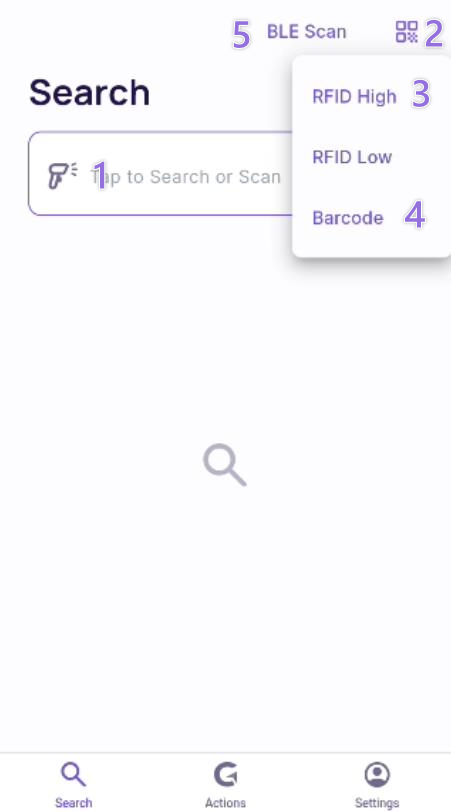
- Users can type to search for related assets. Type searches will look for matching IDs, Serial Numbers, and Descriptions of assets. Type searching is supported on all devices and has a "Lazy Load" technique so that the application does not try to load too many assets simultaneously. If searching a larger result set, only the top 10 matches will show by default. Users can scroll down to continue loading more matches (10 at a time) or refine their search by typing.
- The device's native camera can scan an asset's QR code and pull up the related asset. Click on the icon in the upper right-hand corner to launch the camera. (Note that barcodes need to either be the "GAGE_SN" field or the distinct combination of "COMPANY~GAGE_SN" to scan directly into a device.
- The user can sweep the room to locate assets if you have a supported device with a UHF barcode scanner. RFID scans from this screen only allow for maximum power/continuous scanning. In other words, if the trigger is employed, the gun will scan at its highest power for as long as it is pressed. Each time the trigger is pressed, the current list will be cleared, and the search for any equipment will begin anew. Only devices that are paired with tags in the IndySoft database will display.
- If you have a supported device that has a native barcode scanner, then you can scan supported barcode types with that scanner. If RFID mode is enabled, the user will see options to scan using the native barcode scanner OR the RFID scanner. If RFID capabilities are not available, the native barcode scanner (if detected/supported) will be enabled by default but not explicitly shown.
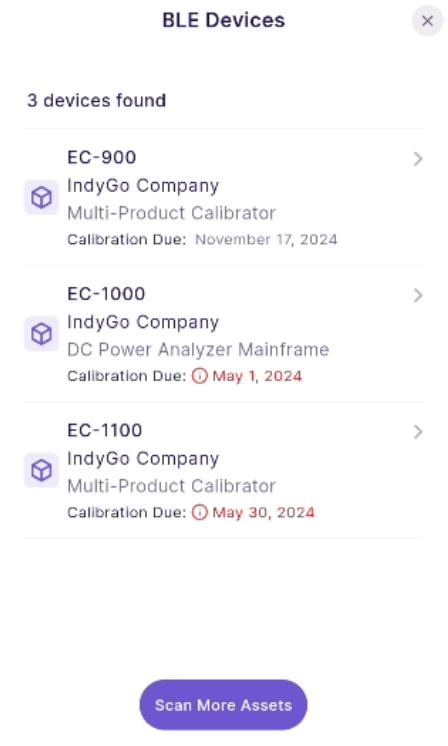
- If BLE Tag Options is enabled, then any asset which is paired with a BLE tag and within your proximity can be shown for the purposes of connecting with that BLE tag and viewing the asset.
Items that appear in the search can display up to 5 key pieces of information. The unique ID, company (option to enable or disable in settings), gage description, due date, and if the object is paired with an RFID tag (parallel arrows.) By default, the due date will be the calibration due date, but a
setting in the IndySoft Client can alter this.
Note: These will not be displayed if PM or "Task" type schedules are used. Only traditional schedules will show. (SCHEDGI.TASK_ID=’0'). Schedules that are due or past due will appear in Red. Another option is to specify due dates which are coming due by days in the future. These asset dates
will appear in orange if configured in the Workflow Configuration System-Wide options.
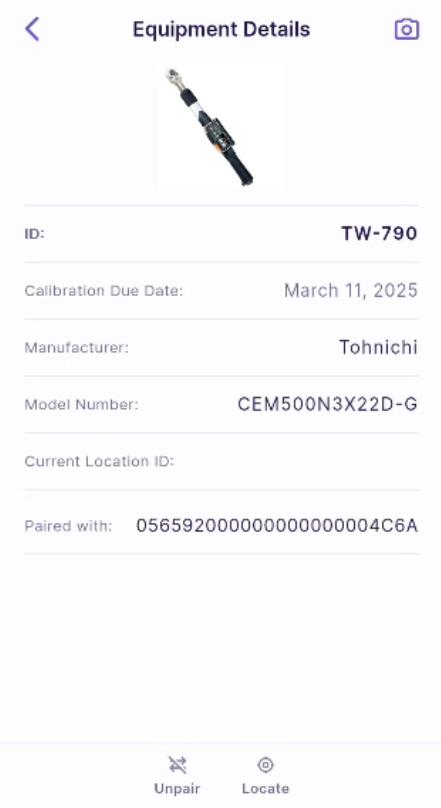
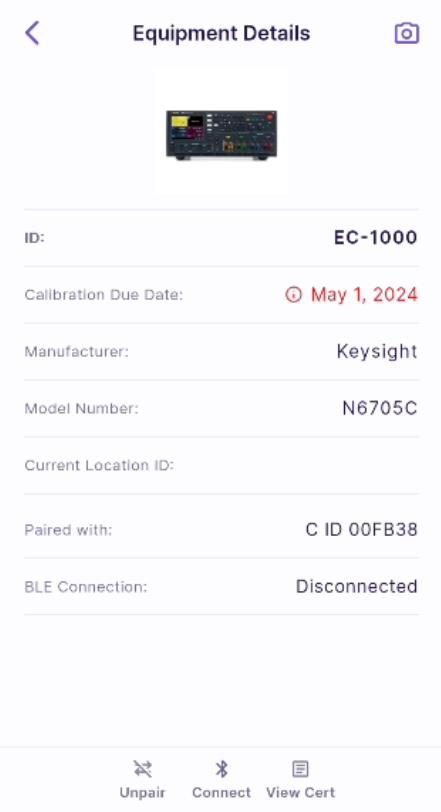
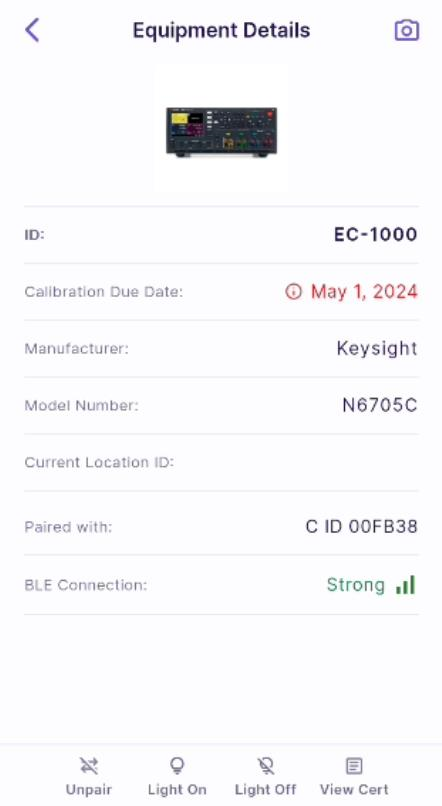
The user can tap on an asset from the search screen and view more detailed information.
The fields are visible, and the order in which they appear can be set at the System-Wide level in Workflow Configuration.
Pairing andpairing-assets-with-passive-and-active-tags.mdUnpairing Assets - If a user has permissions, the device has RFID capabilities or BLE Tag options are enabled, then the user can pair unpaired assets with tags.
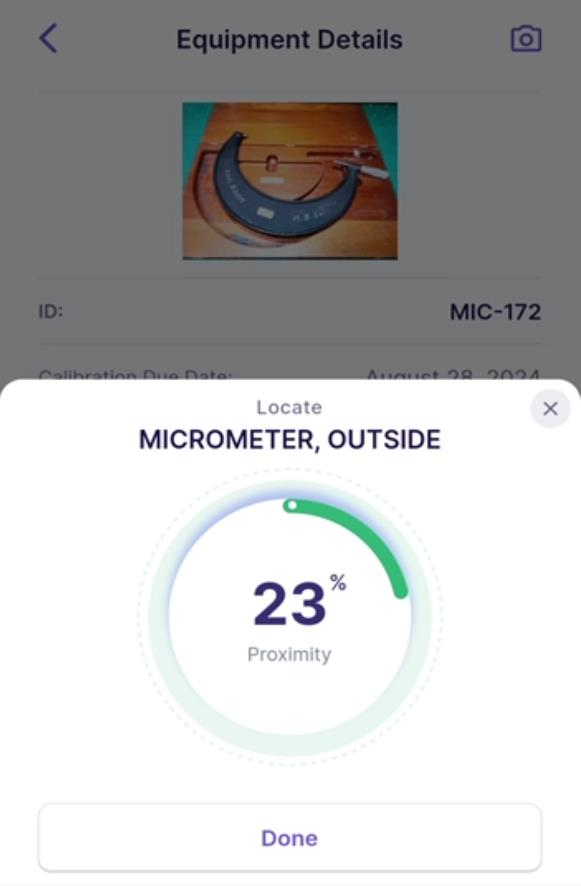
"Locate" Equipment -- If an RFID capable device is paired with a passive tag and Kiosk mode is disabled, then the "Locate" option will appear at the bottom of the "Equipment Details" screen. In this mode, the user can hold down the trigger and get a relative proximity to the tag from the reader. The signal's strength depends upon the signal's output power, the size and type of tag, interference (liquid, metal, etc.), the tag's direction relative to the antenna, and the distance from the tag. The percentage will generally increase as you head toward the tag. Please always reference manufacturer recommendations for UHF RFID tags.
View Cert -- Users can also quickly view the PDF of the most recent certificate. Certificates will only show if they are PDFs, are not pending document sign-offs, and are not archived. Only the most recent certificate will be displayed which meets these criteria.
Update the primary photo of the asset -- If the user has proper permissions, they can take a picture of the asset using their mobile device.
Connecting with BLE Tags by Search or Using the BLE Scan Button -- If the asset is paired with an Active BLE tag, then the user can "Connect" to it from the detailed view. If that tag is the IndySoft Timing or Light Up tag, then upon connection the user will be able to turn on the light for that tag.